Transcribe Zoom Lectures to Notes (Next-Level Notes in Minutes)
Learn how to transcribe Zoom lectures into organized study notes. Use dictation or file uploads to turn any video recording into searchable, structured guides.
Upload Your Recording
Transcribe Zoom Lectures to Notes (Next-Level Notes in Minutes)
Attending Zoom lectures often feels like a high-speed chase. Between trying to screenshot slides, following the professor’s screen share, and typing out complex explanations, it is easy to miss the nuance that actually helps you pass the exam. The dense terminology and rapid-fire delivery of online classes make traditional manual note-taking feel outdated and stressful.
Transcribing your Zoom lectures into notes is the ultimate academic cheat code. Instead of frantically typing, you can focus entirely on the discussion or the visual material, knowing that every explanation, specific example, and "this might be on the test" hint is being captured with precision. This approach transforms a passive video recording into an active, searchable study asset that you can actually use for revision.
The best part about modern transcription workflows is their flexibility. Whether you prefer using live dictation while the Zoom call is active or you prefer to upload a recording from your local drive, the process works seamlessly. It supports any file type—from standard MP4 class recordings to mobile audio files—ensuring you never lose a single second of important lecture content.
Why Transcribing Lectures is Especially Powerful for Zoom Classes
Zoom lectures present unique challenges, such as audio lag or poor connection, which can make it hard to catch every word in the moment. Having a full transcript allows you to bridge those gaps and ensures your study material is complete. When you turn these transcripts into structured notes, you are not just keeping a record; you are creating a high-fidelity reference tool that outperforms any handwritten notebook.
By automating the capture of raw information, you free up your brain to engage in higher-order thinking during the session. You can participate in chats or polls without losing your place in the narrative. The result is a more relaxed learning experience and a significantly more powerful set of resources for finals week.
Capture every technical term and definition with 100% accuracy.
Create a searchable database of every lecture for instant keyword retrieval.
Extract complex frameworks and step-by-step processes directly from the audio.
Reduce weekly review time by reading notes instead of rewatching long videos.
The Next-Level Workflow: Lecture to Transcript to Clean Notes
Step 1: Capture the lecture (dictation or recording) OR upload a file. You can record the audio using a phone voice memo app placed near your computer speakers, use built-in laptop recording software, or simply download the recording provided by your professor. If you have the video file from Zoom or Teams, you are ready to start immediately.
Step 2: Transcribe and structure it for study. Once you have your file or live feed, the transcription process converts the speech into text. Modern tools are highly accurate, but the real value comes from adding structure. Look for speaker labels and timestamps so you can easily reference specific parts of the video later if needed.
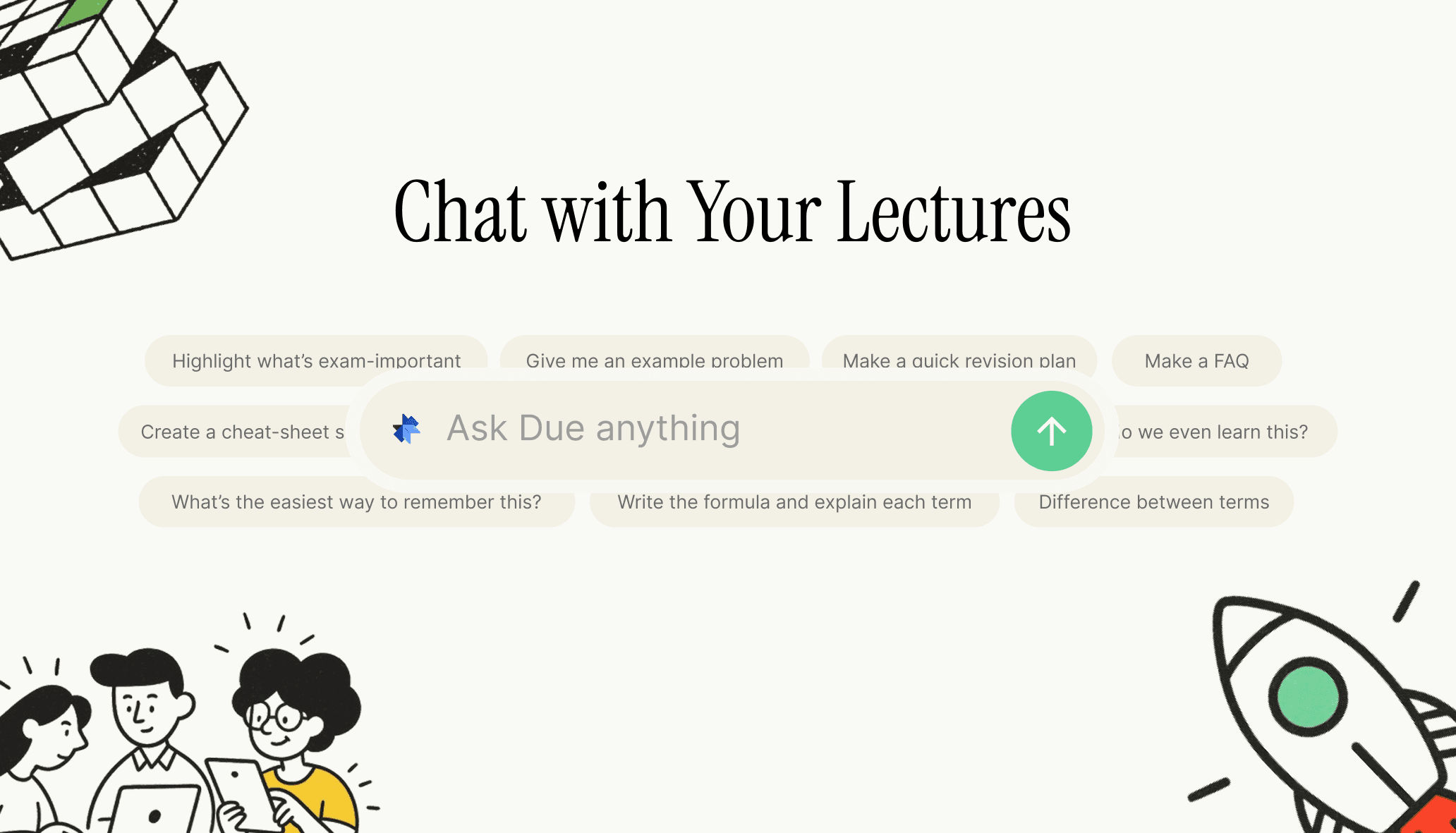
Step 3: Turn the transcript into notes that match how the subject is tested. A transcript is raw data; notes are organized wisdom. Group the text into logical sections based on the themes of the lecture. Focus on defining terms, outlining processes, and highlighting the specific examples or case studies the professor emphasized during the Zoom call.
Step 4: Do a quick cleanup pass. This is where you refine the raw output to ensure it is study-ready. A few minutes of manual editing here saves hours of confusion later during the semester.
Correct any specific technical names or niche jargon.
Bold or highlight core definitions for quick scanning.
Identify and separate formulas or theoretical frameworks.
Flag high-priority exam examples mentioned by the tutor.
Add context lines if the professor referred to a visual slide.
Break long blocks of text into digestible bullet points.
Step 5: Study smarter with the notes. Use your newly formatted notes for spaced repetition and active recall. Instead of just reading, try to turn the section headings into questions. Because your notes are digital and structured, you can quickly convert them into other review formats like summary sheets or flashcards without starting from scratch.
What to Include in Your Zoom Lecture Notes
To maximize the utility of your notes, specific elements must be prioritized. Since Zoom lectures are often dense with information, focusing on these categories will ensure your notes remain practical and relevant for your assignments and exams.
Primary definitions and their meaning in conversational English.
The "How-To" steps for any practical processes described.
Specific case studies or real-world examples used to illustrate a point.
Comparative analysis (e.g., Difference between Method A and Method B).
Verbal cues from the lecturer indicating exam importance.
Assumptions or limitations of the theories discussed.
List of recommended readings or external resources mentioned during the call.
Using Duetoday for Your Zoom Lectures
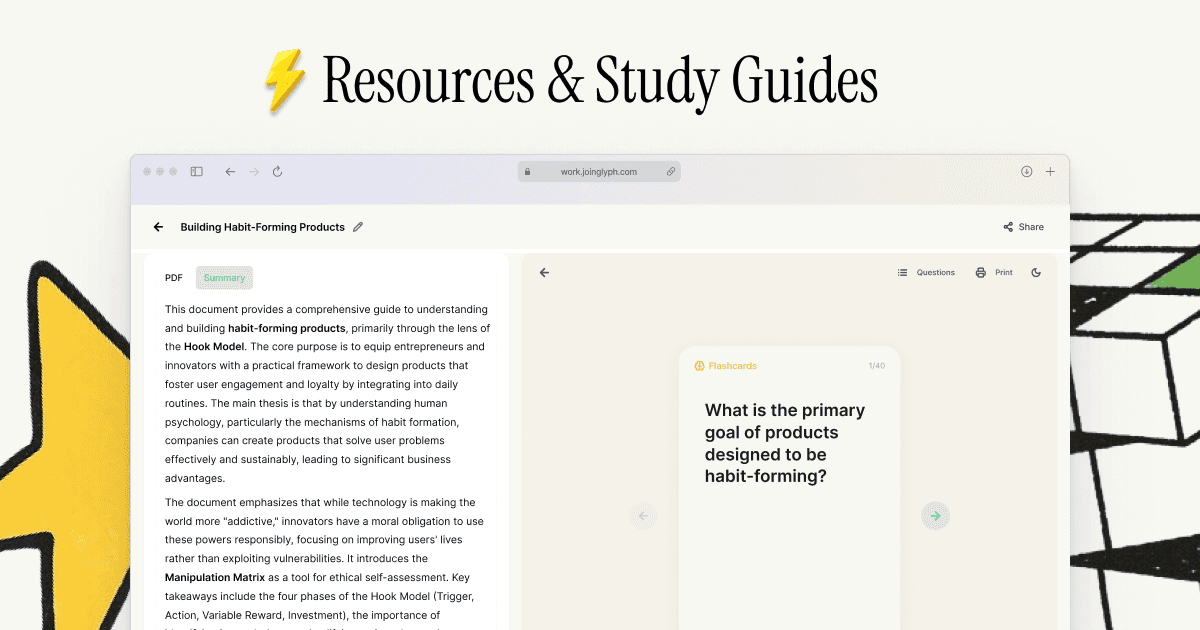
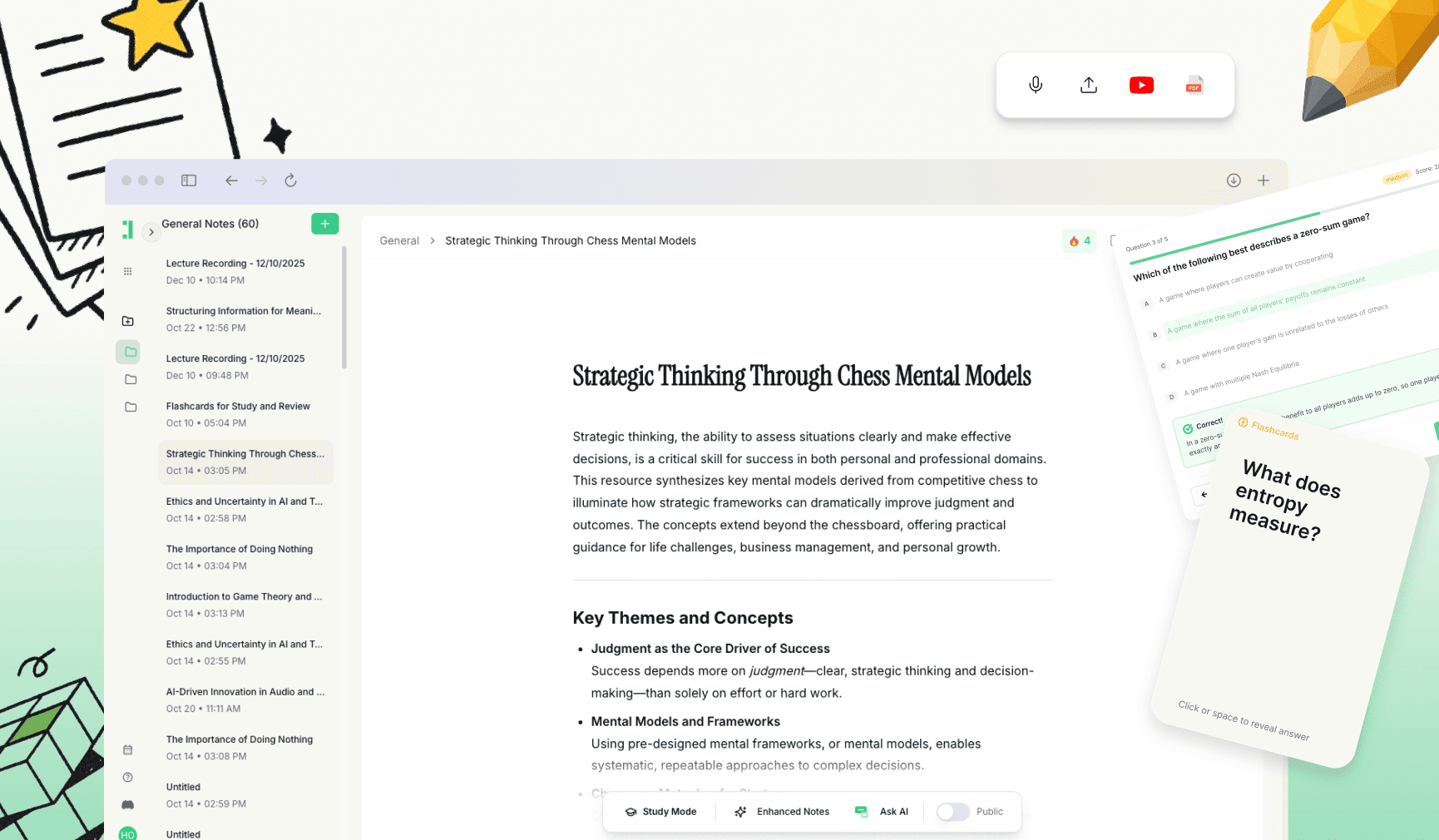
Duetoday is an AI-powered note-taker designed specifically to help students manage the heavy load of digital lectures. It simplifies the transition from a raw Zoom recording to a polished study guide. You can choose to record your screen or audio live via dictation, or you can upload your saved MP4 and MOV lecture files directly into the platform for processing.
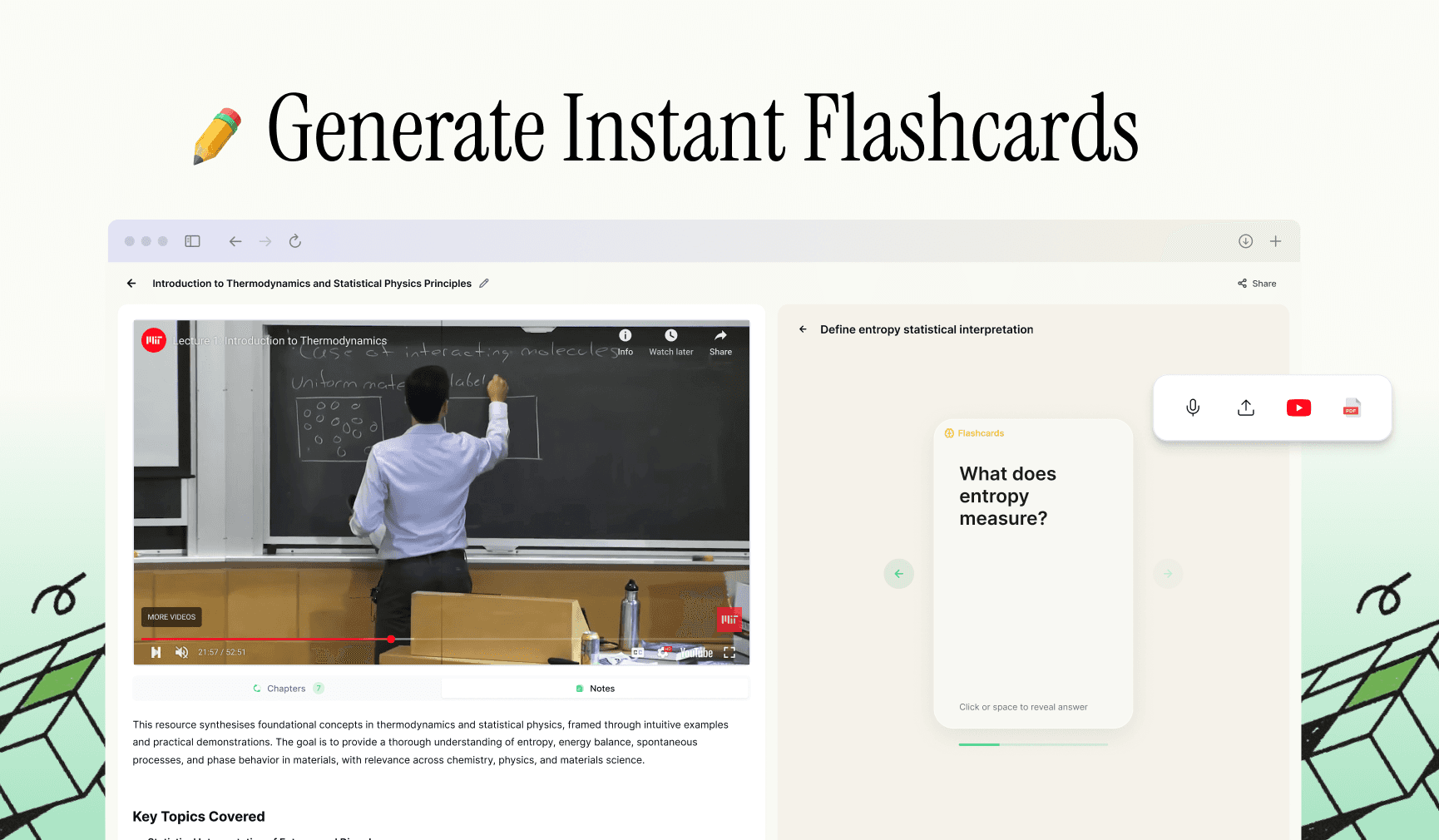
Once uploaded, Duetoday generates a high-accuracy transcript and automatically organizes it into logical notes. Beyond just transcription, it offers a suite of study tools that allow you to generate flashcards, practice quizzes, and even chat with an AI tutor to clarify difficult concepts from that specific lecture. It is a comprehensive solution for turning video content into academic success.
Common Issues and Simple Fixes
Too far from the speaker: If your recording is muffled, ensure your volume is turned up during recording or sit closer to the speaker. For best results, use a direct system-audio recording tool to capture the Zoom output internally.
Background noise: Background hums or clicking keyboards can interfere with clarity. Try to record in a quiet room and avoid typing directly next to the microphone while the recording is active.
Multiple speakers: In seminars or Q&A sessions, transcripts can get messy. Use tools that support speaker diarization to clearly separate the professor’s instructions from student questions.
Long lectures: Attempting to review a three-hour block is daunting. Split your files into chapters or use summaries to break the content down into manageable 20-minute study chunks.
Tiny Example
Raw Transcript Snippet: "So, uh, when we look at the demand curve it usually slopes down... this is key for the final... because as price drops people buy more, which we call the law of demand."
Clean Notes Version:
The Law of Demand: An economic principle stating that as the price of a good decreases, the quantity demanded increases (inverse relationship).
*Note: Lecturer flagged this as a key concept for the final exam.
Frequently Asked Questions
How accurate is lecture transcription for Zoom classes? Modern AI models are incredibly accurate, often reaching over 95% precision. While some niche technical jargon may require a quick manual check, the vast majority of the lecture content will be captured perfectly without manual intervention.
What file types can I use (audio/video)? You can use almost any standard file format. This includes video files like MP4, MOV, and AVI, as well as audio-only files like MP3, WAV, and M4A. If you can play it on your device, you can usually transcribe it.
Can I use dictation instead of uploading a file? Yes, dictation is a great option for live sessions. You can have the transcription tool running in the background while you attend the Zoom lecture, capturing the audio in real-time as the professor speaks.
Can I transcribe online lectures (Zoom/Teams/recorded video)? Absolutely. Whether the lecture is happening live on Zoom/Teams or you are watching a pre-recorded video on a university portal, you can capture the audio and convert it into text notes seamlessly.
How long does it take to transcribe a 60-minute lecture? Processing time is usually very fast. Most modern tools can transcribe an hour-long lecture in just a few minutes, allowing you to start reviewing your organized notes shortly after the class ends.
Is a transcript enough, or should I convert it into structured notes? A transcript is a great starting point, but structured notes are better for learning. Converting the text into headings, bullets, and summaries helps you process the information and makes it much easier to study later.
Can I turn Zoom notes into flashcards and practice questions? Yes, once you have the lecture text in a digital format, it is very easy to use AI study tools to automatically generate flashcards and quizzes based on the specific content covered in that lecture.
Duetoday is an AI-powered learning OS that turns your study materials into personalised, bite-sized study guides, cheat sheets, and active learning flows.
GET STARTED
Most Powerful Study Tool
for Students and Educators
Try Out Free. No Credit Card Required.