Transcribe Microsoft Teams Lectures to Notes (Next-Level Notes in Minutes)
Learn how to transcribe Microsoft Teams lectures into organized, searchable notes. Save time, capture every detail, and boost your revision efficiency today.
Upload Your Recording
The Challenge of Microsoft Teams Lectures
Microsoft Teams lectures often move at a relentless pace, especially when your professor is diving deep into complex theories or technical demonstrations. When you are frantically typing to keep up, it is easy to miss those subtle nuances or the brief 'exam hints' that are dropped between slides. Trying to balance listening with manual note-taking often leaves you with incomplete sentences and gaps in your understanding of the subject matter.
Transcribing your Microsoft Teams lectures into structured notes is the ultimate academic cheat code. Instead of worrying about every word during the live session, you can focus on core concepts knowing that every explanation, example, and formula is being captured with precision. This approach transforms a passive viewing experience into a goldmine of searchable data that serves as the perfect foundation for high-grade revision.
The best part about this workflow is its total flexibility. Whether you are using live dictation to capture audio as it happens or uploading a recording after the class ends, the process remains seamless. It works with every file type imaginable—from standard MP4 lecture recordings to specialized audio files from your phone—ensuring that your online class recordings are never wasted on a hard drive.
Why Transcribing Microsoft Teams Lectures is Powerful
For subjects that rely on heavy terminology or rapid-fire explanations, transcripts provide a level of detail that manual notes simply cannot match. You move from having a rough outline to possessing a verbatim record of exactly how your instructor explained a difficult concept. This is particularly useful for revision because you can search for keywords to find the exact moment a specific topic was discussed.
By converting these transcripts into structured notes, you create a resource that is far more functional than a raw video. You can extract frameworks and process steps without having to scrub through hours of footage, making your weekly review sessions significantly faster. Professional-grade notes allow you to:
Keep every critical definition and technical example.
Create a searchable database for midterms and finals.
Extract specific formulas and multi-step processes easily.
Reduce the time spent re-watching lecture videos by 80%.
The Next-Level Workflow: Teams Lecture to Clean Notes
Step 1: Capture the lecture or upload your file. You can record the MS Teams session directly using the built-in recording feature or use your phone’s voice memo app to record the audio from your speakers. If the lecture is already over, simply download the recording from the Teams chat or the class portal. Any video or audio file serves as a perfect starting point.
Step 2: Transcribe and structure it for study. Use a modern transcription tool to process your file. The goal here is to get a clean text output that includes timestamps or speaker labels. Having a clear structure from the start makes it much easier to distinguish between the professor’s main lecture and student questions that might arise during the session.
Step 3: Turn the transcript into subject-specific notes
Raw text is just the beginning; you need to shape it to match how your subject is tested. If you are in a technical field, focus on extracting formulas and their applications. For social sciences, look for case study details and comparisons. Organizing the transcript into headings and summaries ensures the information is digestible for later use.
Step 4: Perform a quick cleanup pass
Spend five minutes reviewing the output to ensure the most important points stand out. This small investment in time drastically increases the long-term value of your notes. Use this checklist to polish your document:
Correct technical terms or unusual names the AI might have missed.
Bold or highlight core definitions for quick scanning.
Isolate formulas or theoretical frameworks into their own blocks.
Identify examples that the lecturer explicitly noted as 'exam-relevant.'
Add brief context lines to clarify transitions between topics.
Break down large blocks of text into smaller, readable sections.
Step 5: Study smarter with the revision loop
Once your notes are ready, use them for active recall. Instead of just reading them, convert sections into practice questions or summaries. Because your notes are digital and searchable, you can quickly find related themes across different weeks of the semester, allowing for a more holistic understanding of the curriculum. This organized approach turns a simple recording into a powerful study engine that supports long-term retention.
What to Include in Your Subject Notes
Your notes from a Microsoft Teams lecture should be more than a summary; they should be a functional study guide. Ensure your final document includes these key elements:
Clear definitions translated into plain English explanations.
Core formulas, frameworks, or models used during the session.
Detailed step-by-step processes for problem-solving.
Specific case studies or worked examples mentioned by the instructor.
Clarifications on common misconceptions or pitfalls.
Explicit 'exam hints' or areas the professor emphasized.
Comparison tables or lists of pros and cons for relevant theories.
A list of assumptions or conditions where certain rules apply.
Leveraging Duetoday for Success
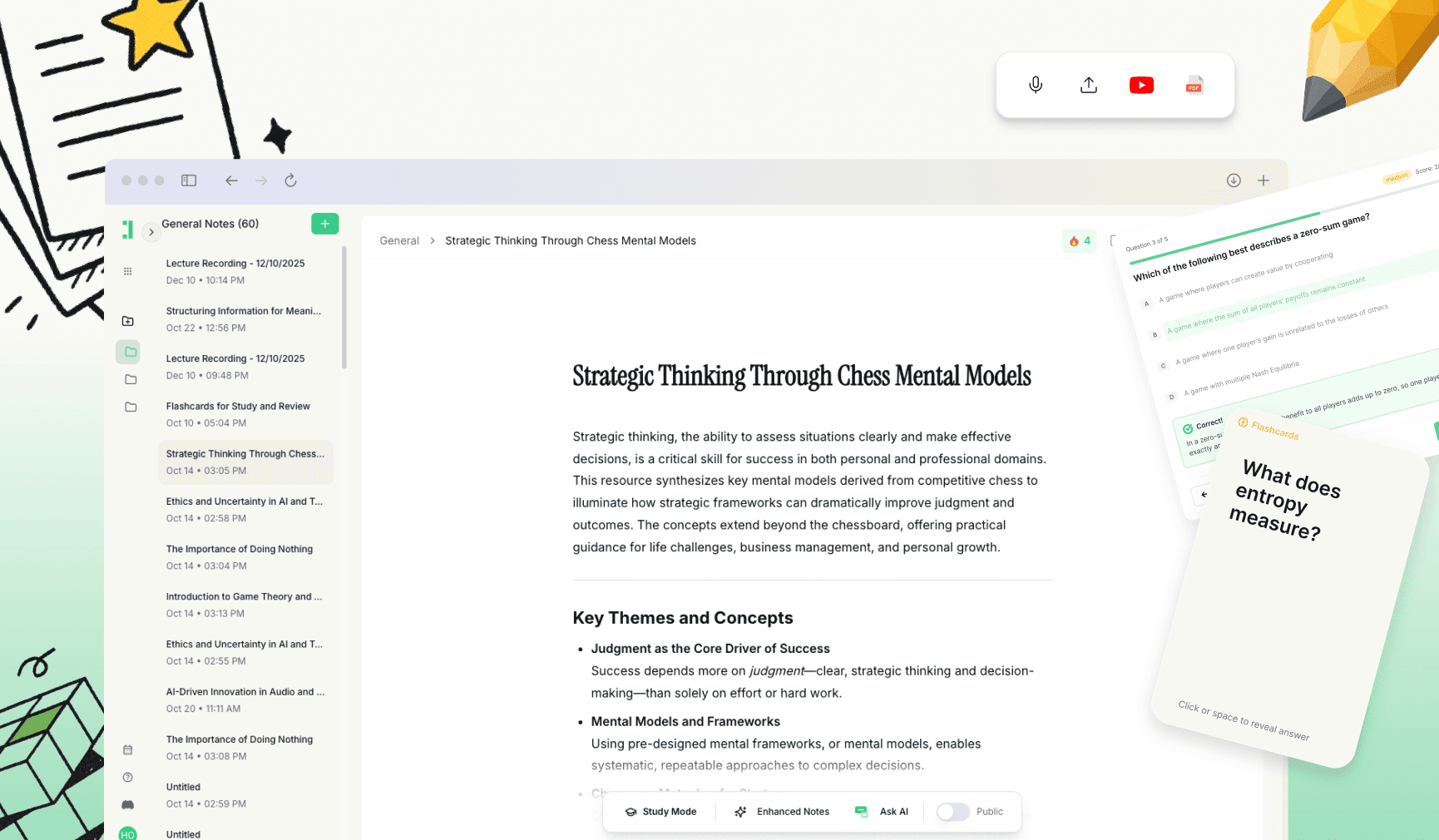
Duetoday is an AI-powered note-taker designed specifically to handle the heavy lifting of lecture transcription and organization. It allows you to either record live via dictation or upload your saved Microsoft Teams recordings in various audio and video formats. The platform doesn't just provide a transcript; it uses advanced AI to generate structured, intuitive notes that save you hours of manual formatting.
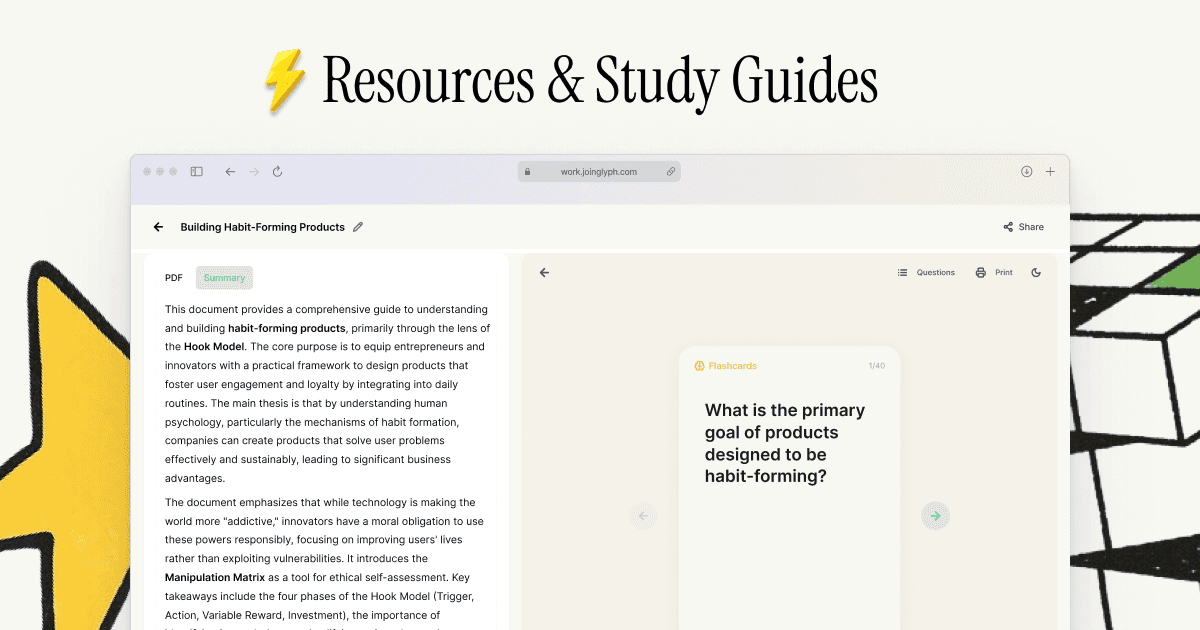
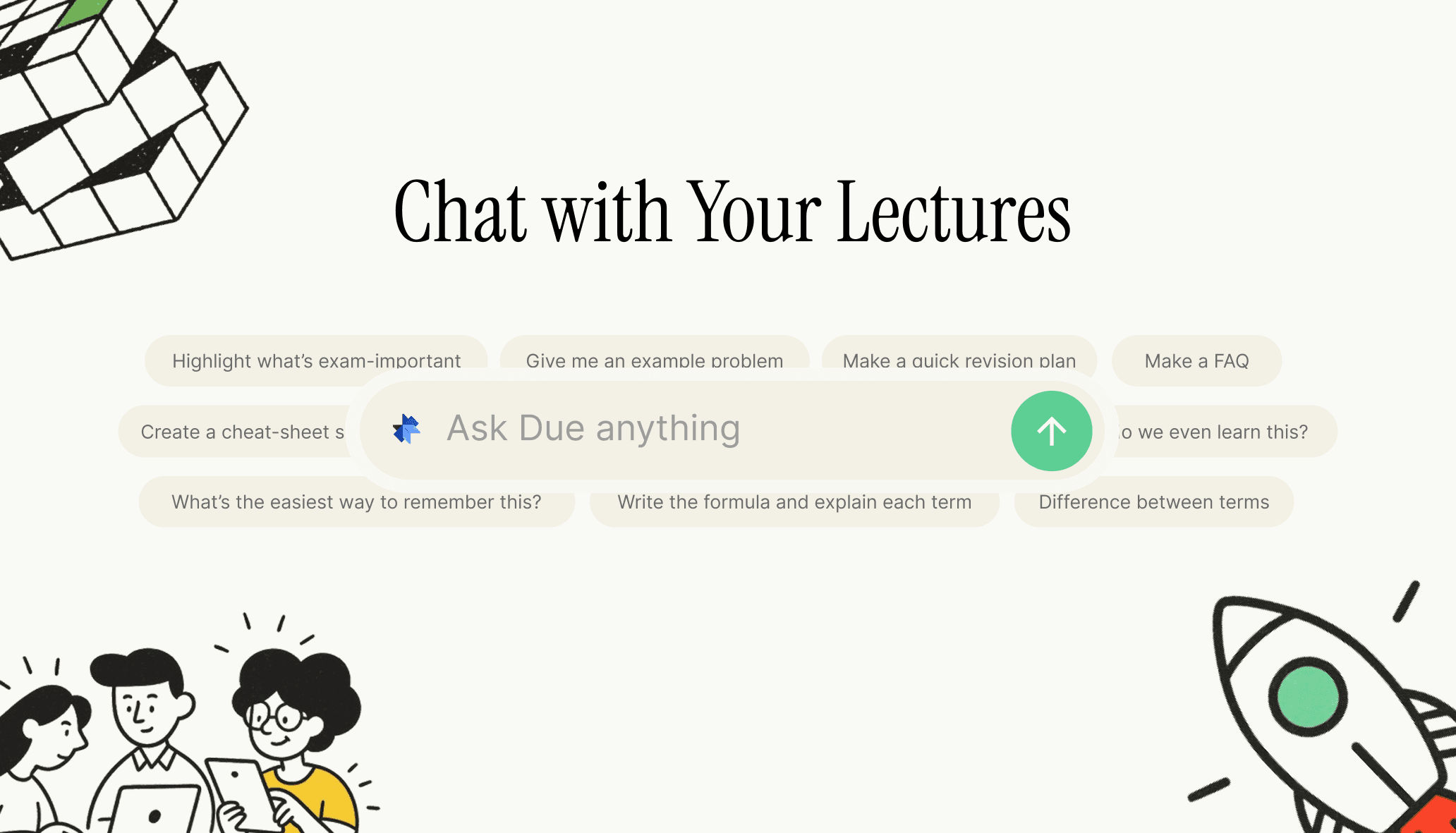
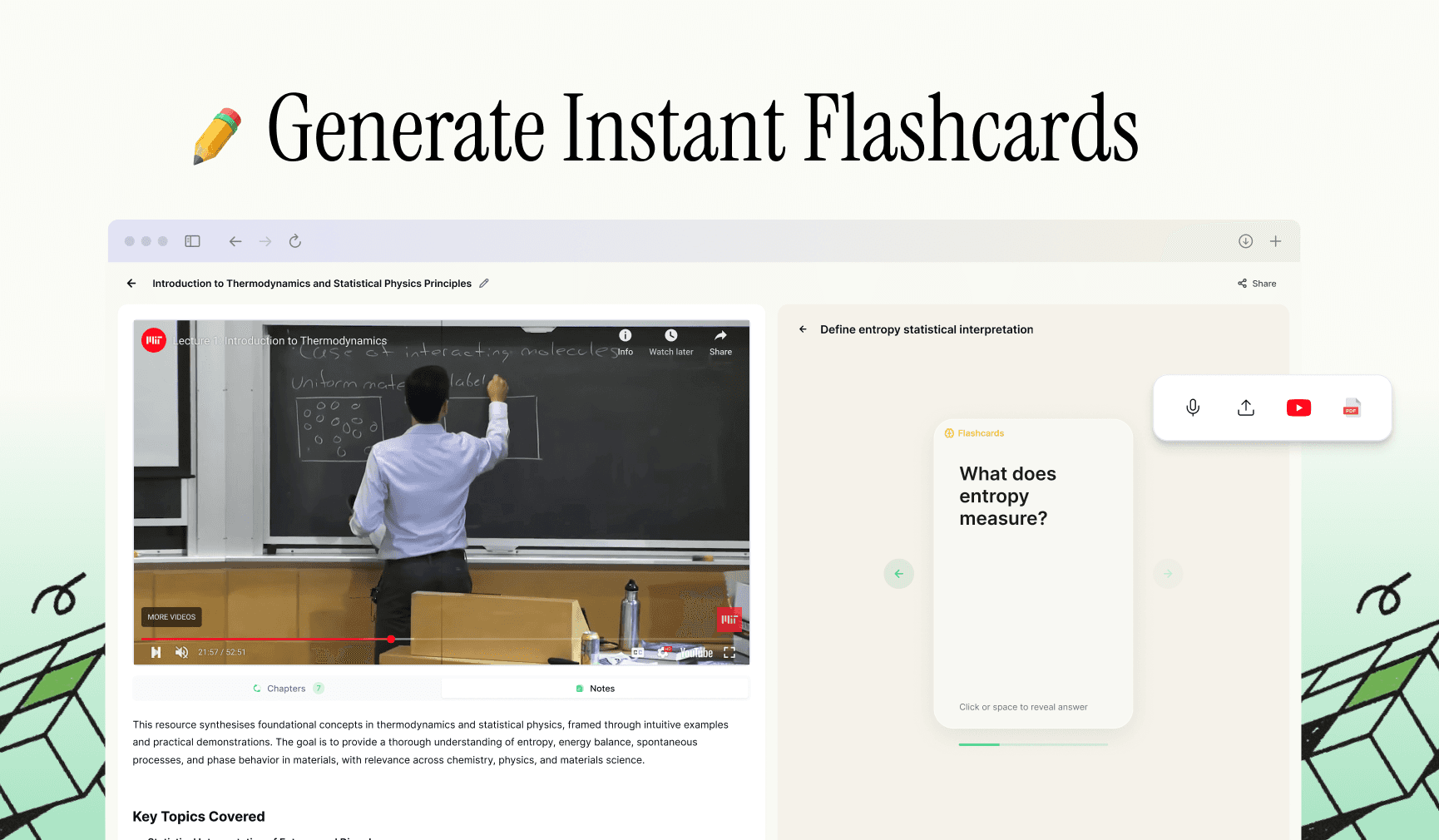
Beyond just notes, Duetoday offers a suite of study tools that integrate directly with your transcribed content. You can instantly generate flashcards, practice quizzes, or chat with an AI tutor to clarify difficult sections of the lecture. This makes it an all-in-one solution for students who want to spend less time transcribing and more time actually mastering their course material.
Common Issues and Simple Fixes
Too far from the speaker: If you are recording a live room, sit near the audio source. For online lectures, ensure your system volume is high enough for the recording software to capture a clear signal.
Background noise: Try to record or attend your Teams meetings in a quiet environment. If recording your screen, avoid using mechanical keyboards near the microphone to prevent clicking sounds in the transcript.
Multiple speakers: When a lecture involves a lot of student participation, use tools that offer speaker diarization. This helps you separate the professor's formal teaching from the peer-to-peer discussion.
Long lectures: For three-hour sessions, it is often helpful to split the file or the notes into chapters. This prevents the document from becoming overwhelming and makes it easier to find specific topics later.
Transformation Example
Raw Transcript Snippet: 'So, uh, the Law of Diminishing Returns, right, it basically says that at a certain point, adding more, let’s say workers, won’t help as much if the space is fixed...'
Cleaned Study Note: The Law of Diminishing Returns: A principle stating that as more units of a variable input (e.g., labor) are added to fixed inputs (e.g., land), the resulting increases in output will eventually decline.
How accurate is lecture transcription for Microsoft Teams?
Modern AI transcription is remarkably accurate, often reaching 95% or higher accuracy. It handles technical terminology well, though it is always good practice to do a quick manual check of specific formulas or niche academic names.
What file types can I use (audio/video)?
You can use almost any standard file type, including MP4, MOV, and AVI for video recordings, or MP3, WAV, and M4A for audio-only files captured during the lecture.
Can I use dictation instead of uploading a file?
Yes, you can use dictation to capture the lecture in real-time as you listen. This is a great way to have your notes ready almost immediately after the session ends without waiting for a file to download.
Can I transcribe online lectures (Zoom/Teams/recorded video)?
Absolutely. You can transcribe any recorded online lecture by uploading the video file or by recording the audio output of your computer while the session is live.
How long does it take to transcribe a 60-minute lecture?
With modern AI tools, a 60-minute lecture can typically be transcribed and organized into notes in under five to ten minutes, depending on the file size and processing speed.
Is a transcript enough, or should I convert it into structured notes?
While a transcript is a great record, structured notes are much better for studying. Notes allow you to highlight the most important concepts and ignore filler words, making your review sessions much more efficient.
Can I turn my notes into flashcards and practice questions?
Yes, tools like Duetoday allow you to instantly convert your transcribed notes into interactive flashcards and practice quizzes, which are essential for active recall and exam preparation.

Duetoday is an AI-powered learning OS that turns your study materials into personalised, bite-sized study guides, cheat sheets, and active learning flows.
GET STARTED
Most Powerful Study Tool
for Students and Educators
Try Out Free. No Credit Card Required.