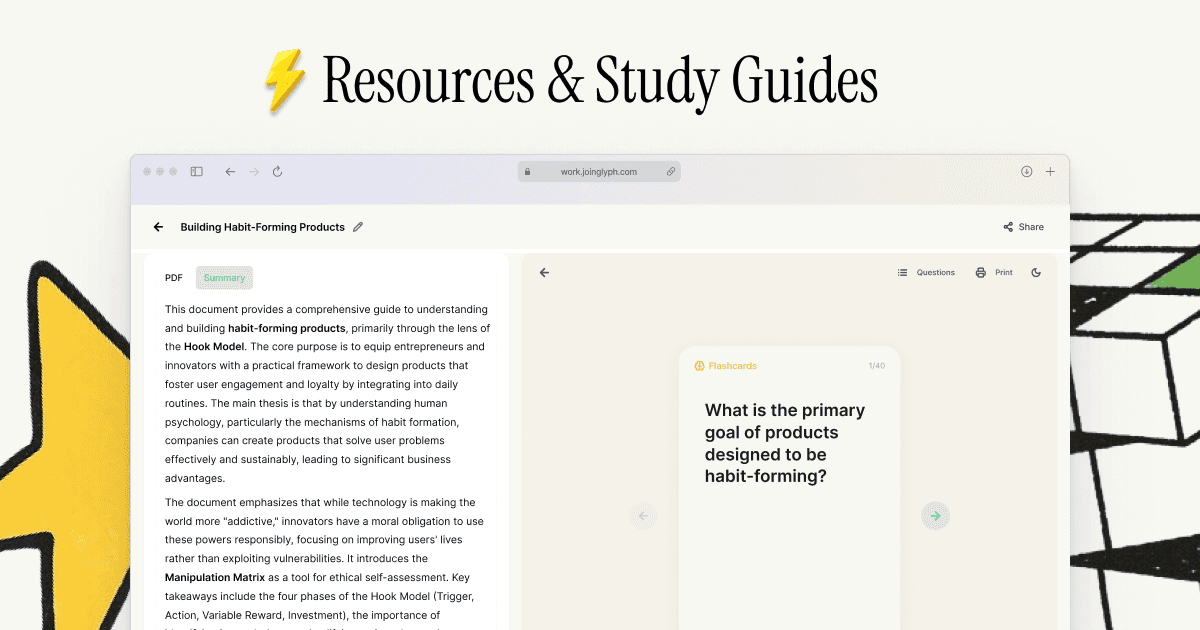
Transcribe Mac Lectures to Notes (Next-Level Notes in Minutes)
Learn how to transcribe lectures on Mac and turn them into organized study notes. Works with live dictation, audio uploads, and video recordings.
Upload Your Recording
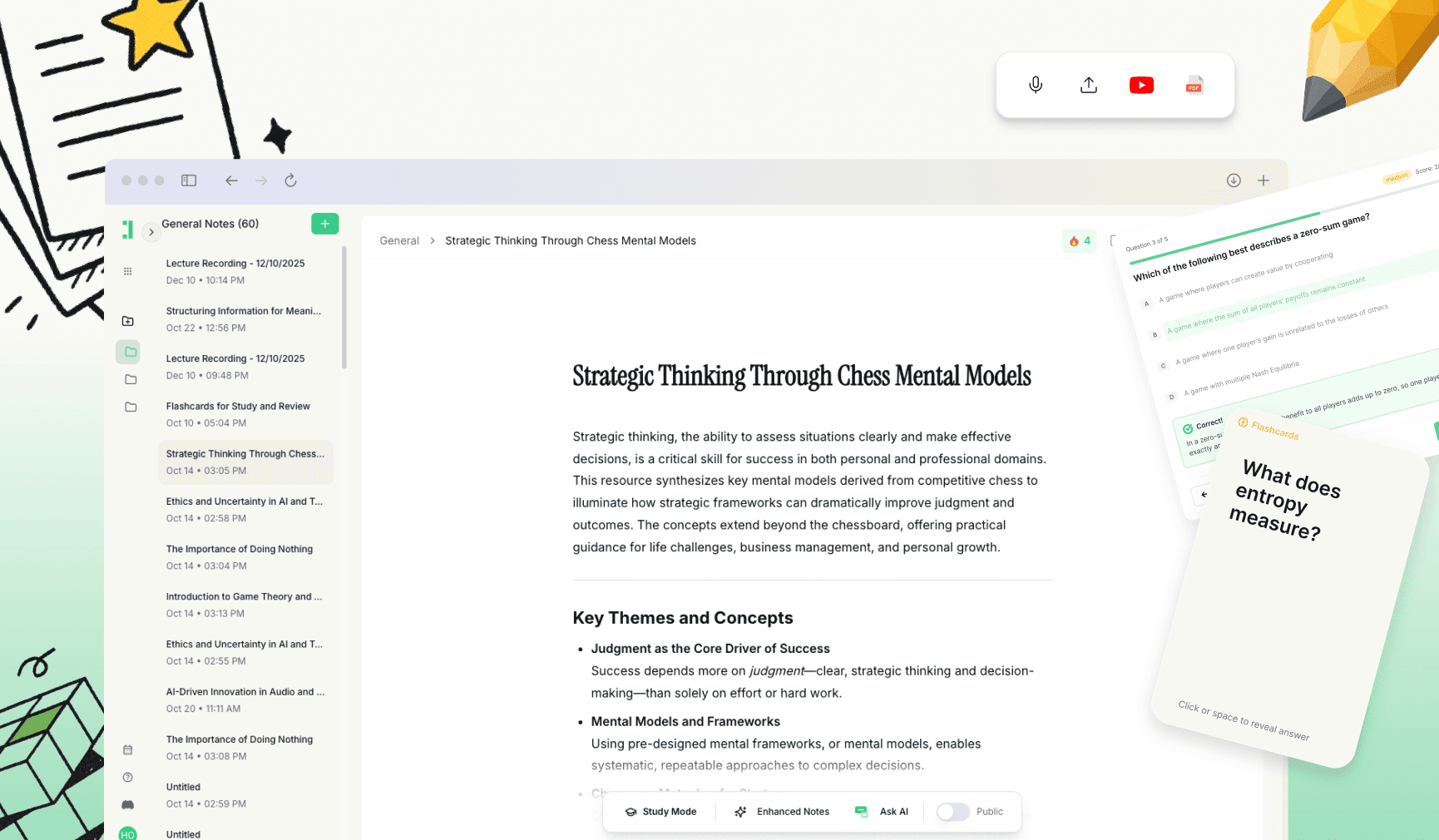
The Challenge of Mac Lecture Note-Taking
Attending a lecture on a Mac offers great flexibility, but the speed of technical discussions often outpaces even the fastest typists. When the professor dives into complex frameworks or rapid-fire case studies, you are often forced to choose between listening or typing, which leads to gaps in your understanding. Missing a single nuanced explanation can make a whole chapter feel confusing when you sit down to study later.
Transcribing your Mac lectures into notes is the ultimate productivity hack for students. Instead of frantically capturing every word, you can focus on the concepts being discussed. By capturing the full verbal explanation, you ensure that 'exam hints' and specific context—the things that aren't usually on the slides—are preserved for your revision sessions.
This workflow is versatile and fits how you study. Whether you are using your Mac to record a live lecture via dictation or you are uploading a pre-recorded video file from a lecture portal, the process remains the same. It supports any audio or video format, including Zoom recordings, Teams meetings, and standard MP4 or MOV lecture files, making it a universal solution for modern learning.
Why Transcribing Lectures is Power for Mac Users
Mac users have access to some of the best processing power and software integration, making the leap from audio to text seamless. For subjects that require heavy memorization or understanding of complex processes, having a word-perfect transcript ensures that no detail is lost to a 'brain fog' moment during class.
The benefits of moving from manual typing to automated transcription include:
Never miss a definition or a specific example provided by the professor.
Create a searchable database of every lecture for fast revision before exams.
Extract frameworks and process steps directly from the spoken word.
Spend your class time thinking rather than just transcribing.
By treating the lecture as a data source rather than a dictation exercise, you become a more active participant in the classroom. You can flag moments to revisit later and trust that the transcription will provide the full context you need to fill in the blanks.
The Next-Level Workflow: Lecture to Clean Notes
Step 1: Capture the lecture via dictation or upload a file. On your Mac, you have several options. You can use a voice memo app during a live session, use built-in dictation tools, or simply download the lecture video from your university dashboard. Whether it is an MP3, WAV, or a video file like MP4 or MOV, the first step is simply ensuring you have the recording ready for processing.
Step 2: Transcribe and structure it for study. Once you have your file, the goal is to transform that raw audio into a readable format. Modern transcription tools handle the bulk of the work, but you should look for structure. Breaking the text down into speaker labels or timestamps makes it much easier to navigate later, especially during long two-hour seminars.
Step 3: Turn the transcript into notes that match your subject. A raw transcript is just a wall of text. You need to shape it based on how you will be tested. For technical subjects, look for formulas; for humanities, look for arguments and citations. Organize the text into logical blocks that reflect the syllabus headers.
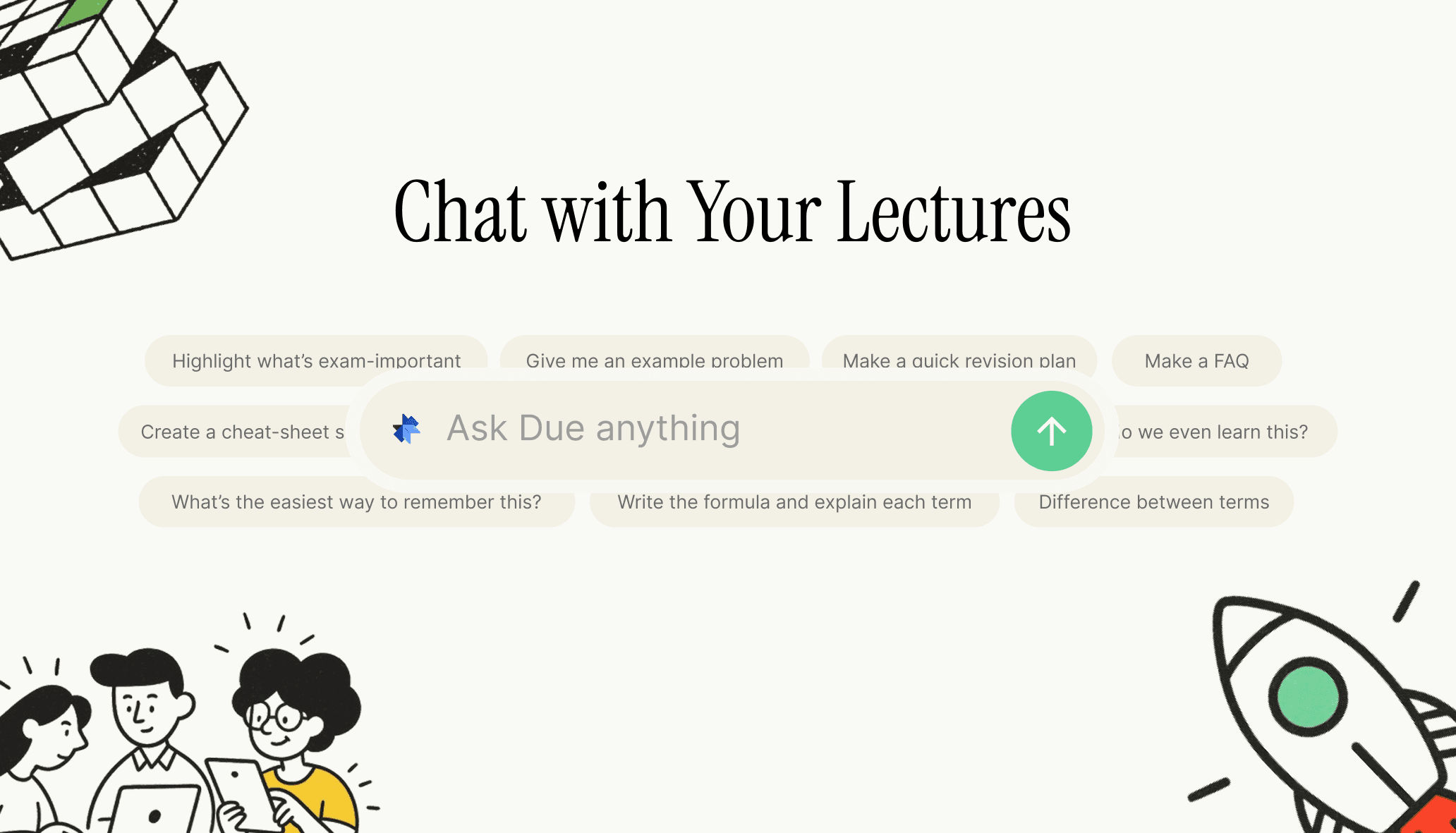
Step 4: Do a quick cleanup pass
Review your generated notes to ensure they align with the lecture’s key takeaways. Use this checklist to refine the output:
Fix spelling for subject-specific terminology or names.
Bold or highlight core definitions.
Pull out formulas or frameworks into separate lines.
Mark examples that the professor signaled as 'exam-likely'.
Add context lines where the professor referenced a specific slide.
Split large blocks of text into readable 3-4 sentence paragraphs.
Step 5: Study smarter with the revision loop. Use your clean notes for spaced repetition. Since the notes are searchable, you can quickly find topics that coincide with your practice questions. You can also use the structured notes to build flashcards or summarized cheat sheets, ensuring the information moves from the page into your long-term memory.
What to Include in Your Subject Notes
To ensure your notes are high-utility, focus on capturing specific elements that often get lost in standard summaries. This ensures your Mac-based note-taking system provides a competitive advantage during finals week.
Key definitions and their meaning in plain English.
Formulas and frameworks, including when they should be applied.
Step-by-step processes for problem-solving.
Real-world case studies or worked examples mentioned in class.
Common mistakes or misconceptions the lecturer warned about.
Specific 'this will be on the exam' hints.
Comparison tables for contrasting theories (A vs B).
Assumptions or conditions under which a rule applies.
Optimize with Duetoday
Duetoday is an AI-powered note-taker designed specifically for students who want to turn their Mac lecture recordings into high-grade study materials. It simplifies the transition from audio/video files into structured, usable notes without the manual labor usually required to format a transcript.
The platform works seamlessly with both live dictation and file uploads, supporting a wide range of audio and video formats. Beyond just providing a transcript, Duetoday helps you generate flashcards, practice quizzes, and features an AI tutor that allows you to ask questions about your lecture content directly, making it a comprehensive companion for revision.
Common Issues and Simple Fixes
Too far from the speaker: If the audio is faint, try to sit closer to the lecturer if recording live or use a directional microphone. If you are recording a video on your Mac, ensure the system volume is clear.
Background noise: High-traffic areas can interfere with clarity. Try to record in quiet environments or use noise-reduction settings if available during the upload process to ensure the engine captures every word accurately.
Multiple speakers: In seminars or group discussions, voices can overlap. Use transcription features that support speaker labels to distinguish between the professor’s points and student questions.
Long lectures: For three-hour sessions, consider splitting the file into chapters or modules. This makes it easier to manage the notes and prevents the resulting document from becoming overwhelming.
Transcription Example
Raw Transcript: "So today we are looking at the law of supply. Um, basically as the price of a good or service increases, the quantity supplied increases as well, assuming other things are constant. This is key for the midterm in two weeks."
Cleaned Notes:
Topic: The Law of Supply
Definition: There is a direct relationship between price and quantity supplied (Price ↑, Supply ↑).
Condition: Ceteris Paribus (all other factors remain constant).
Exam Note: This concept is confirmed for the upcoming midterm exam.
How accurate is lecture transcription for my Mac?
Modern AI models used for transcription on Mac are highly accurate, even with technical terminology. While a few names or specific acronyms might need a quick manual fix, the overall text is usually clear enough for immediate study use.
What file types can I use (audio/video)?
You can use almost any standard media file type, including MP3, WAV, M4A, MP4, and MOV formats. This covers everything from voice memos to downloaded online lecture videos.
Can I use dictation instead of uploading a file?
Yes, you can record long-form audio directly into a tool using your Mac's microphone or an external mic. This is perfect for live in-person classes where a file isn't available for download later.
Can I transcribe online lectures (Zoom/Teams/recorded video)?
Absolutely. If you have the video file from a recorded Zoom or Teams session, or even a YouTube lecture link, you can process those files into a full transcript and set of notes.
How long does it take to transcribe a 60-minute lecture?
Automated processes are very fast. A 60-minute lecture typically takes only a few minutes to process into a full transcript, which is significantly faster than the 4-5 hours it would take to transcribe manually.
Is a transcript enough, or should I convert it into structured notes?
A transcript is a great starting point, but structured notes are better for learning. Organizing the text into summaries, bullet points, and headers makes the information much easier to scan and memorize during revision.
Can I turn my notes into flashcards and practice questions?
Yes, once your lecture is converted to text, you can easily use that content to generate study aids. Tools like Duetoday allow you to automatically create flashcards and quizzes based on the specific content of your lecture notes.
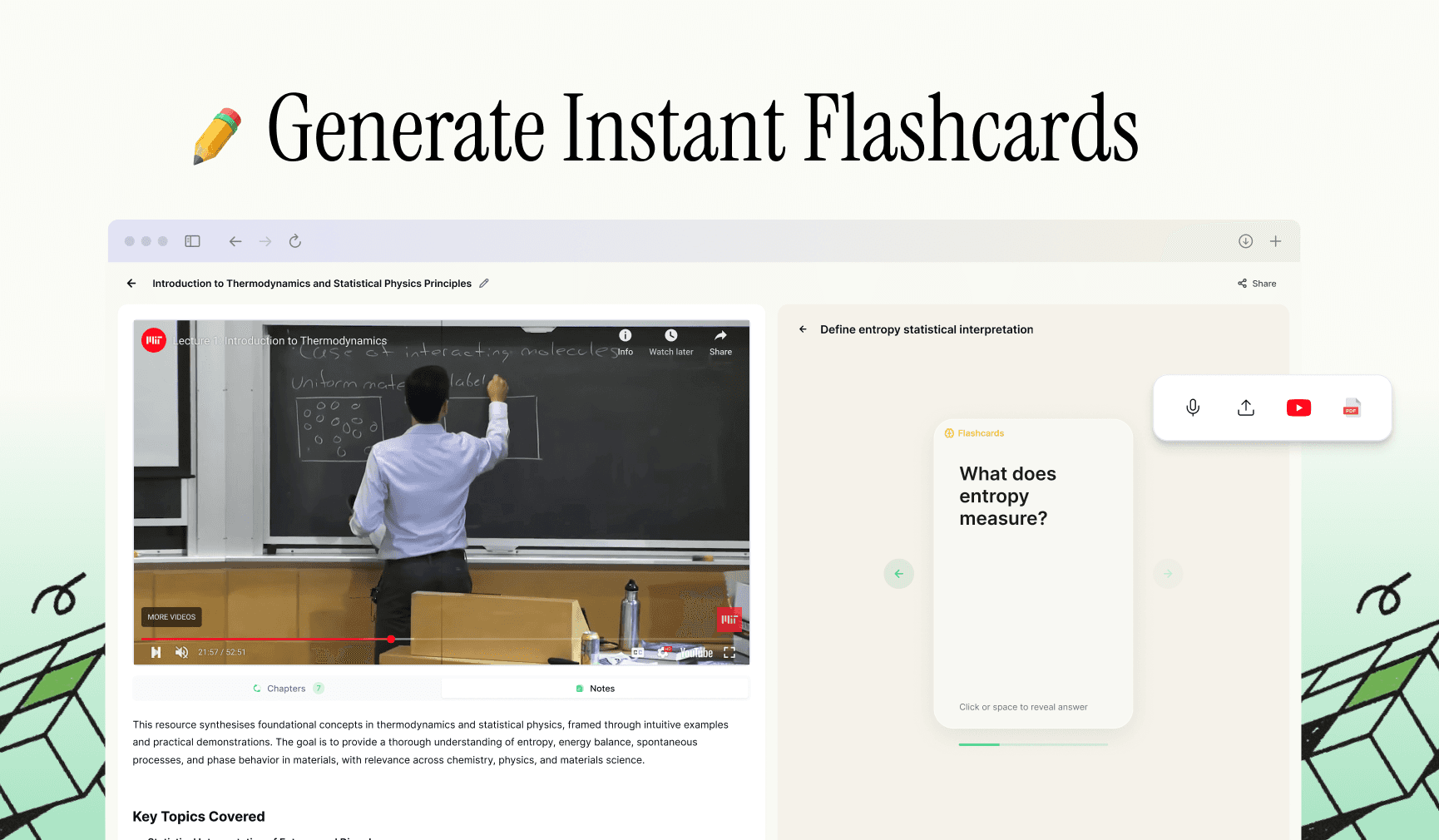
Duetoday is an AI-powered learning OS that turns your study materials into personalised, bite-sized study guides, cheat sheets, and active learning flows.
GET STARTED
Most Powerful Study Tool
for Students and Educators
Try Out Free. No Credit Card Required.