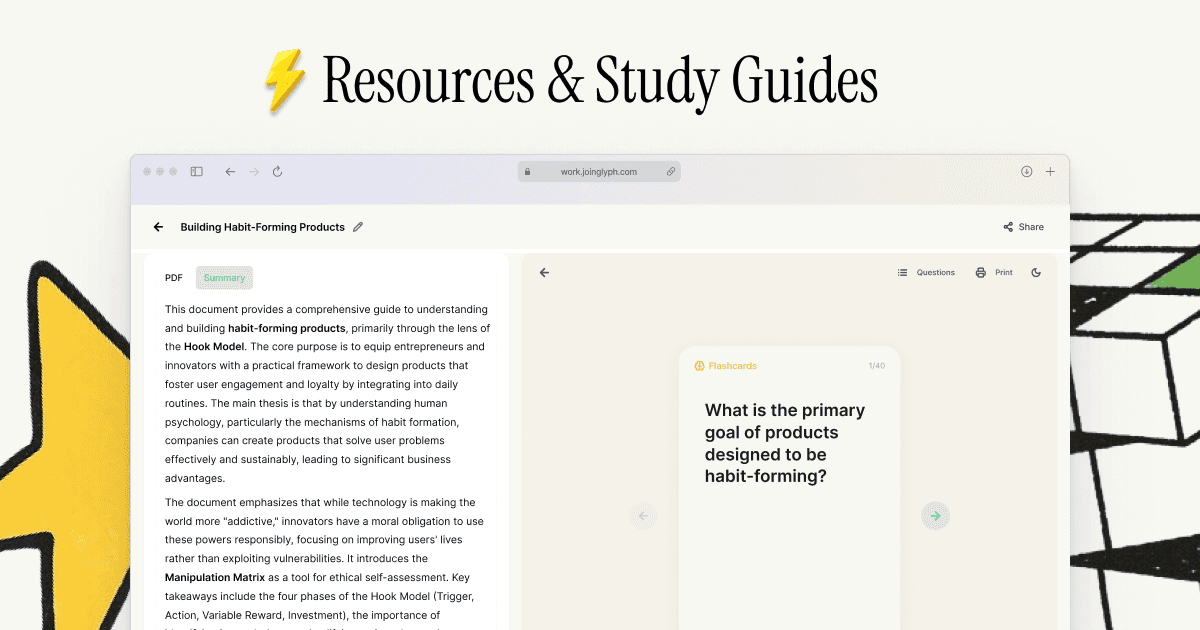
Generate a PDF to table (key info) summary instantly with Duetoday
Learn how to use Duetoday's AI to extract key information from any PDF to table format. Perfect for students and professionals looking to organize data fast.
How to Convert Your PDF to Table (Key Info) with Duetoday
Using an AI tool to convert a PDF to table (key info) format is the fastest way to organize dense academic or professional documents. Instead of manually copying data, Duetoday uses advanced processing to identify the most important data points in your file and present them in a structured table.
Whether you are dealing with a complex research paper, a long lecture transcript, or a business report, transforming your PDF to table (key info) snapshots helps you review facts, dates, and definitions in seconds. Below is a guide on how to streamline your study or work sessions using Duetoday.
TL;DR:
Upload your document to Duetoday to instantly extract structured data.
Customise the output into tables, flashcards, or study guides.
Save hours of manual data entry and focus on learning the material.
How to do PDF to table (key info) in Duetoday (step-by-step)
Create your Duetoday account: Log in to your dashboard to access the AI workspace designed for students and professionals.
Upload your PDF: Drag and drop your file into the upload zone. Ensure the PDF contains the key info you want to see in a table format.
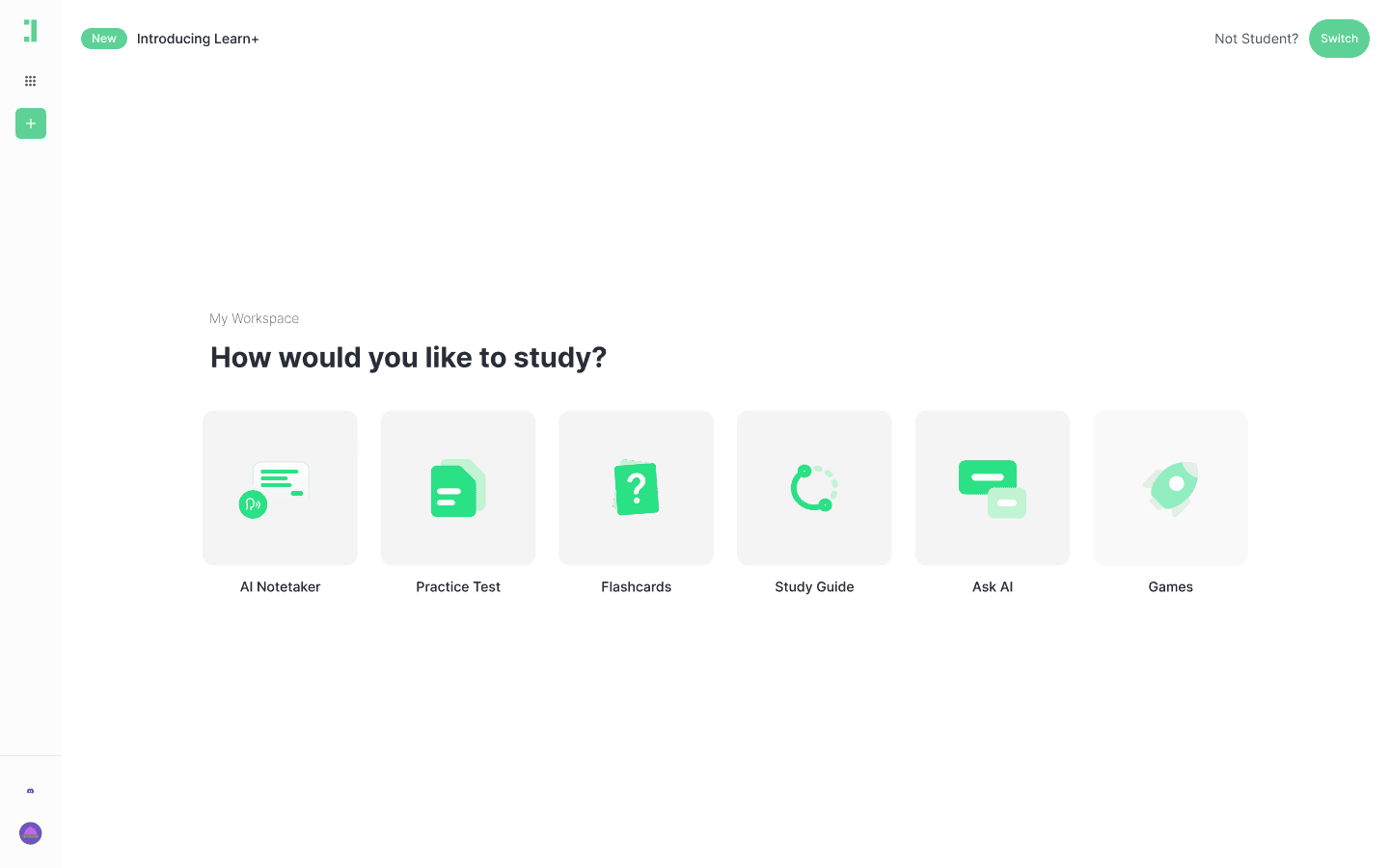
Select your output type: Choose the 'Study Guide' or 'Notes' option. Duetoday’s AI is optimized to identify structured data within these modes.
Rename your headings: Before processing, you can give your document a specific name so the AI organizes the table columns based on your specific requirements.
Split chapters: If your PDF is over 50 pages, use the chapter split tool. This ensures the key info from each section is captured accurately in separate tables.
Filter junk pages: Deselect covers, bibliographies, or image-only pages that don't contain relevant data to keep your table clean.
Set the focus: Tell the AI to focus on specific data points like 'Terms and Definitions' or 'Dates and Events' to guide how the table is built.
Choose question style: If you want the table to act as a self-test, select the 'Quiz' mode to generate a table of questions versus answers.
Generate the content: Click the 'Generate' button and wait a few seconds as the AI parses the PDF text into structured information.
Review the table: Check the generated notes section where the AI will have categorized the most important facts into a skimmable layout.
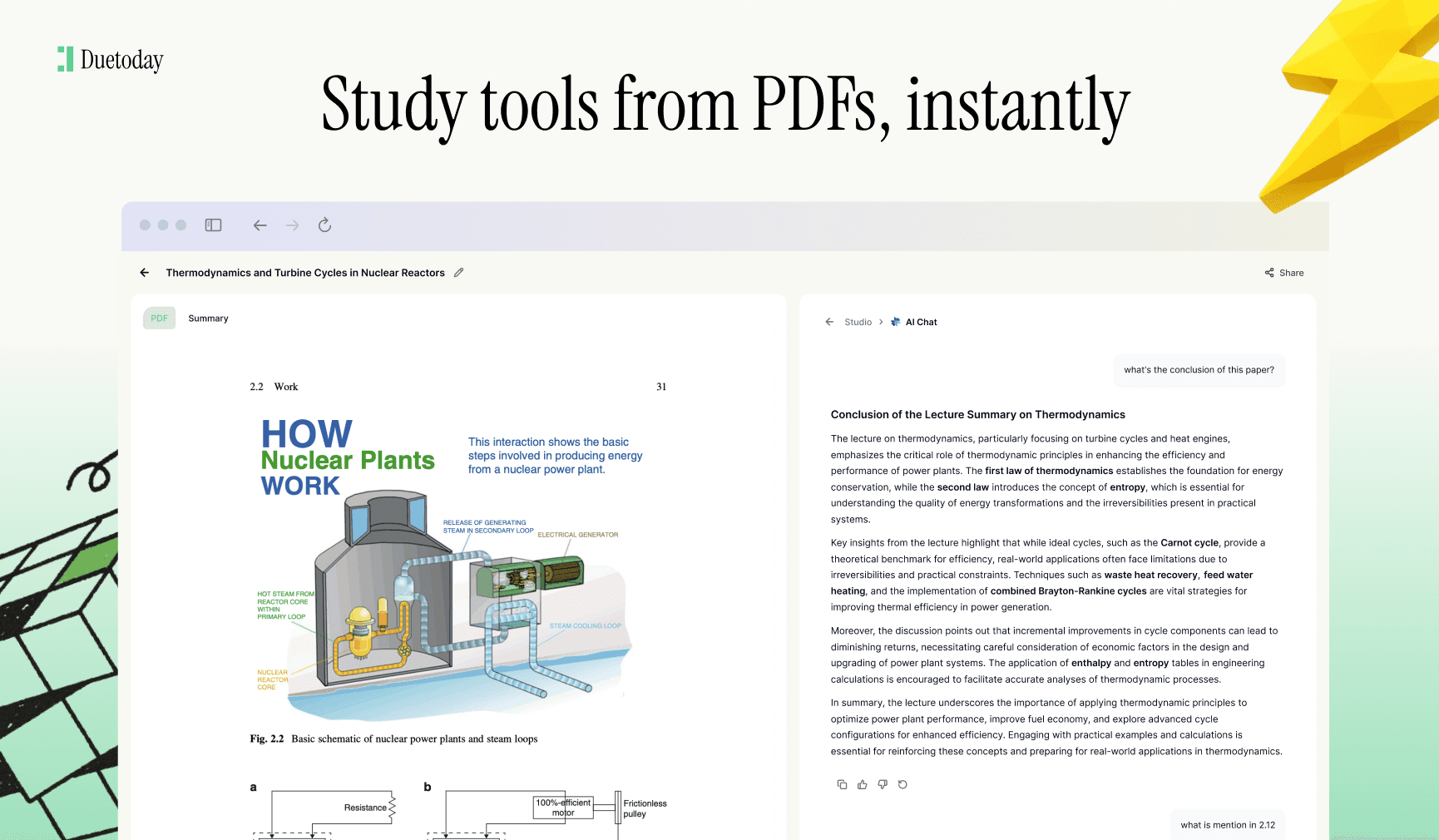
Edit and Refine: Use the AI tutor chat to ask the system to 'Rewrite this section as a Markdown table' if you need a specific grid format.
Export your data: Once satisfied, copy the structured data or export it to your preferred note-taking app.
What you can generate from your PDF
Key Info Tables: Summary tables that list the main concepts alongside their explanations.
Flashcards: Take the table data and convert it into definition or cloze-style cards for active recall.
AI Tutor Chat: Interactively ask questions about the table to deepen your understanding of the context.
Quizzes: Structured multiple-choice questions based on the key information extracted.
Upload Your PDF Here
Mini example: Photosynthesis Process
Input: A 10-page biology PDF explaining the light-dependent and light-independent reactions of photosynthesis.
Output (Key Info Table):
Stage: Light-Dependent Reactions | Location: Thylakoid Membrane | Inputs: H2O, Light, NADP+ | Outputs: O2, ATP, NADPH
Stage: Calvin Cycle | Location: Stroma | Inputs: CO2, ATP, NADPH | Outputs: G3P (Sugar), ADP, NADP+
Key Enzyme: RuBisCO | Function: Fixes carbon dioxide from the air into organic molecules.
Product: Glucose | Description: The primary energy source produced for the plant.
Tips to get higher-quality results
Ensure PDF Clarity: Use documents with selectable text rather than low-quality scans for the best extraction results.
Provide Context: Use the rename or instruction feature to tell the AI exactly what 'key info' means to you (e.g., Focus on dates).
Remove Irrelevant Pages: Don't upload the table of contents or index pages to avoid cluttering your table.
Segment Large Files: Processing one chapter at a time usually results in much more detailed and specific tables.
Troubleshooting
Scanned PDF not reading? Try using a PDF version with an OCR (Optical Character Recognition) layer or a clearer digital copy.
Output is too generic? Use the AI tutor chat to say: Rewrite the previous table but include more specific technical terminology from page 4.
Table format is messy? Ask the AI tutor to Format the key info into a clean Markdown table for a better visual structure.
Too much info? Adjust your settings to focus only on 'Summaries' rather than 'Full Transcripts' to keep the table concise.
Master your documents today
Organizing data shouldn't be the hardest part of your day. By converting your PDF to table (key info) summaries with Duetoday, you can spend less time organizing and more time learning. Whether you're a student preparing for finals or a professional analyzing a project brief, our AI tools are built to make your life easier.
Ready to organize your notes? Try Duetoday today and turn your messy PDFs into structured tables instantly.

Duetoday is an AI-powered learning OS that turns your study materials into personalised, bite-sized study guides, cheat sheets, and active learning flows.