The Fastest Way to Turn a PDF to Study Questions per Page
Transform any PDF into targeted study questions per page. Learn how Duetoday AI automates your study sessions with custom quizzes and instant notes.
PDF to study questions per page
Finding a way to convert a PDF to study questions per page is the most efficient way to ensure you actually understand what you are reading. Instead of skimming through a long document, generating specific questions per page helps you master the material chapter by chapter.
Using Duetoday, you can automate this entire process. Our platform analyzes your documents and creates high-quality assessment tools so you can stop highlighting and start active recall immediately.
TL;DR:
Upload any PDF and get instant, page-specific study questions.
Customizable outputs include multiple-choice, short answer, and flashcards.
Saves hours of manual note-taking and question-writing.
How to do PDF to study questions per page in Duetoday (step-by-step)
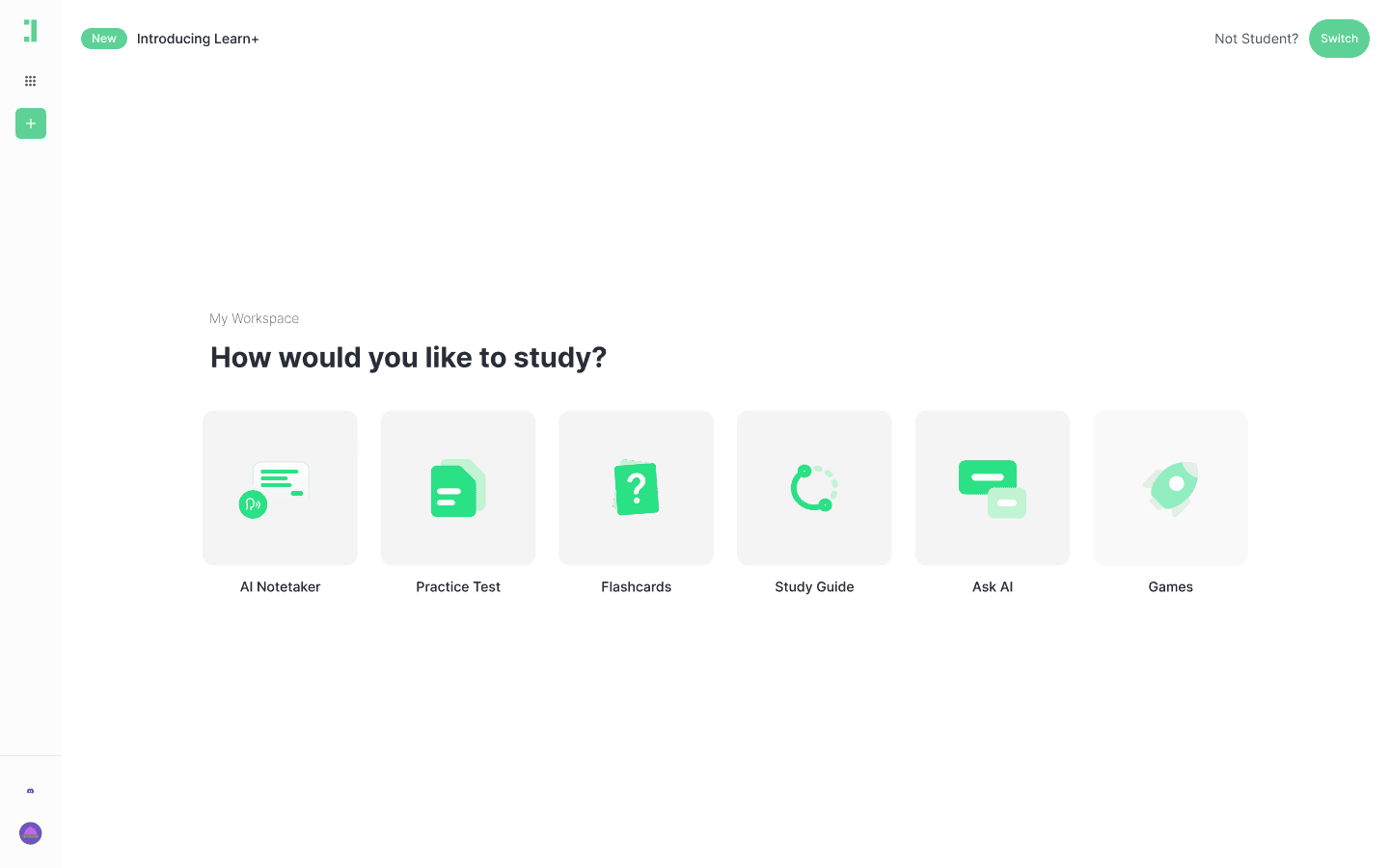
Log in to Duetoday: Access your dashboard via desktop or mobile browser to start a new project.
Upload your PDF: Click the 'Upload' button and select the document you want to study. For best results, ensure the text is clear.
Wait for processing: Duetoday’s AI will analyze the structure of your document, identifying page breaks and key concepts.
Select 'Generate Quiz': Choose the quiz option from the study tools menu to begin generating questions.
Define the scope: Use the page selector tool to specify if you want questions for the whole document or specific page ranges.
Choose question style: Select between 'Multiple Choice', 'True/False', or 'Short Answer' to fit your exam format.
Set the difficulty: Adjust the toggle to 'Beginner', 'Intermediate', or 'Advanced' based on your current knowledge level.
Organize by chapters: Use the 'Split Chapters' feature if your PDF is a large textbook so questions stay grouped by topic.
Review the generated list: Scroll through the questions generated for each page to ensure they cover the core themes.
Rename headings: Organize your quiz by renaming sections based on the specific page numbers or topics covered.
Edit or refine: If a specific question is too easy, use the AI tutor chat to ask for a more challenging version of that concept.
Save and Export: Once satisfied, save your quiz to your library or export it for offline use.
What you can generate from your PDF
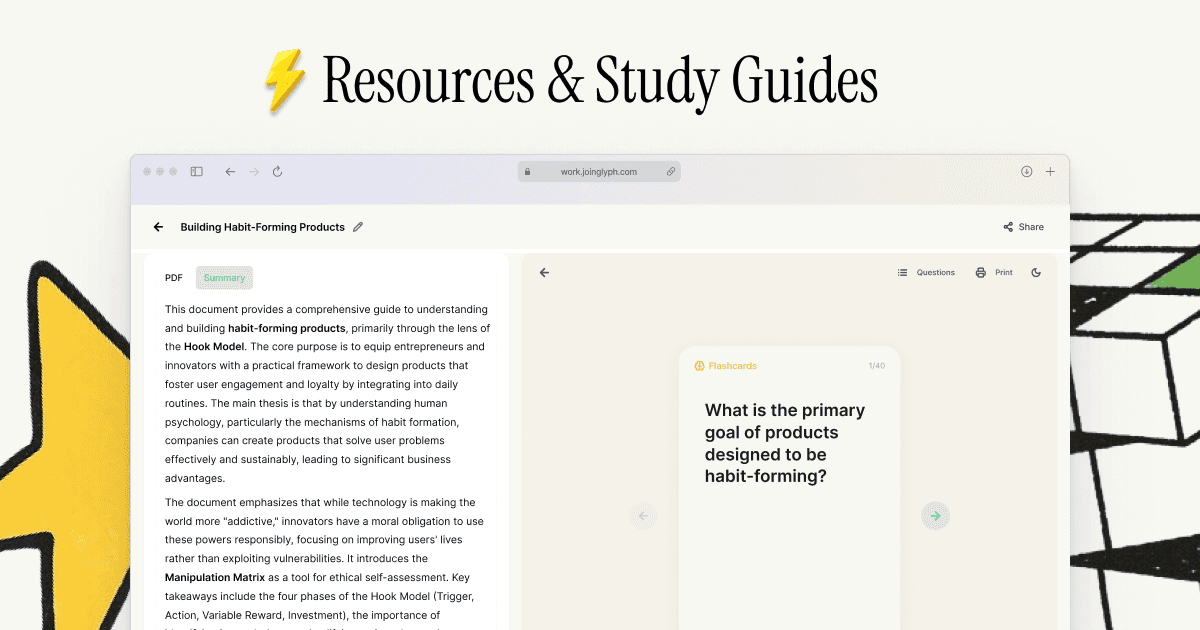
Flashcards: Create definitions and cloze deletion cards focused on page-specific vocabulary.
Quiz: Generate a structured MCQ or short-answer assessment for every page of the document.
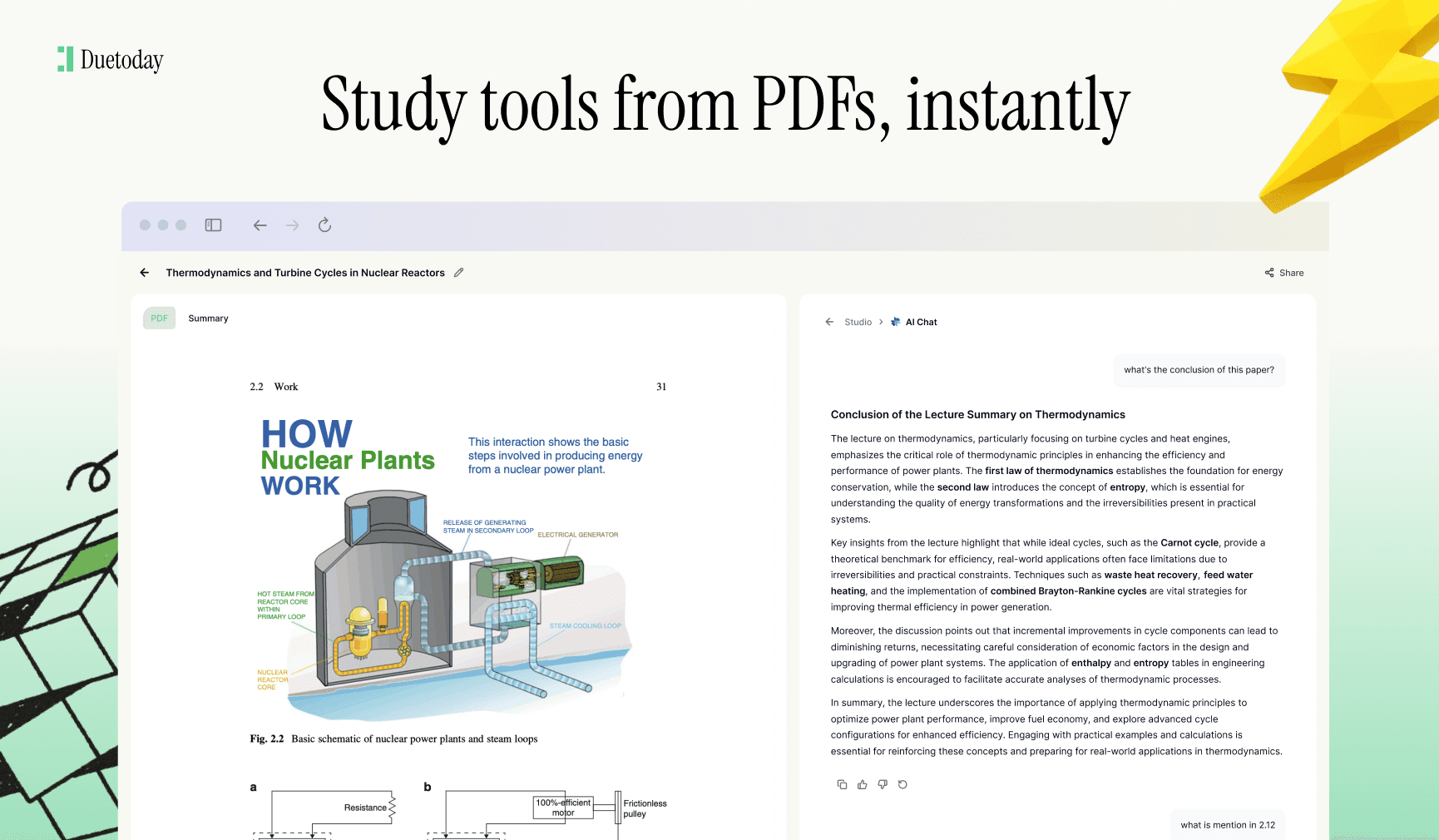
AI Tutor: Engage in a live chat where the AI asks you questions based on the page you are currently viewing.
Upload Your PDF Here
Mini example: Photosynthesis Basics
Input: A 3-page PDF explaining the Light-Dependent Reactions and the Calvin Cycle in plant biology.
Output (Sample Questions):
Page 1: Where exactly in the chloroplast do the light-dependent reactions take place? (Answer: Thylakoid membrane)
Page 2: What are the two main products of the light reactions used in the Calvin Cycle? (Answer: ATP and NADPH)
Page 3: What enzyme is responsible for carbon fixation in the first step of the Calvin Cycle? (Answer: RuBisCO)
Page 3: How many turns of the Calvin Cycle are required to produce one molecule of G3P? (Answer: Three)
Tips to get higher-quality results
Clean the PDF: Before uploading, remove any irrelevant pages like the table of contents, index, or bibliography to focus the AI.
Split into Chapters: If your PDF is over 50 pages, upload it in chapter-sized chunks to ensure the AI can provide more granular questions.
Check Text Clarity: Ensure the text is selectable in your PDF. If you can't highlight text with your cursor, use an OCR tool first.
Provide Context: Use the 'Instructions' field in Duetoday to tell the AI if you are prepping for a medical board exam versus a high school quiz.
Troubleshooting common issues
Output too generic: If questions are too broad, try highlighting a specific paragraph and asking the AI tutor to generate questions only from that snippet.
Scanned PDF errors: If the text looks like gibberish, try a higher-resolution scan or use a PDF compressor that preserves text layers.
Missing pages: Ensure the file upload was 100% complete before clicking generate. If pages are skipped, try re-uploading the specific range.
Wrong difficulty: If the questions are too easy, adjust the settings to 'Advanced' or instruct the AI to 'focus on application-based questions'.
Final step: Try Duetoday for free
Stop wasting hours manually writing questions and let AI do the heavy lifting. Convert your PDF to study questions per page in seconds and start mastering your material today. Sign up for Duetoday now and transform your study routine.

Duetoday is an AI-powered learning OS that turns your study materials into personalised, bite-sized study guides, cheat sheets, and active learning flows.