The Fastest Way to Convert Your PDF to reading notes
Learn how to transform any PDF to reading notes instantly. Use Duetoday AI to generate structured study guides, summaries, and lecture notes from your documents.
PDF to reading notes
Struggling to manage long documents? Converting a PDF to reading notes is the most efficient way to digest complex information without spending hours highlighting every page. With the right tools, you can turn dense academic papers or professional reports into structured, actionable insights in seconds.
TL;DR:
Upload your PDF and let AI handle the heavy lifting of summarization.
Get structured reading notes including main ideas, key terms, and summaries.
Interactive AI features allow you to chat with your notes for deeper understanding.
How to do PDF to reading notes in Duetoday (step-by-step)
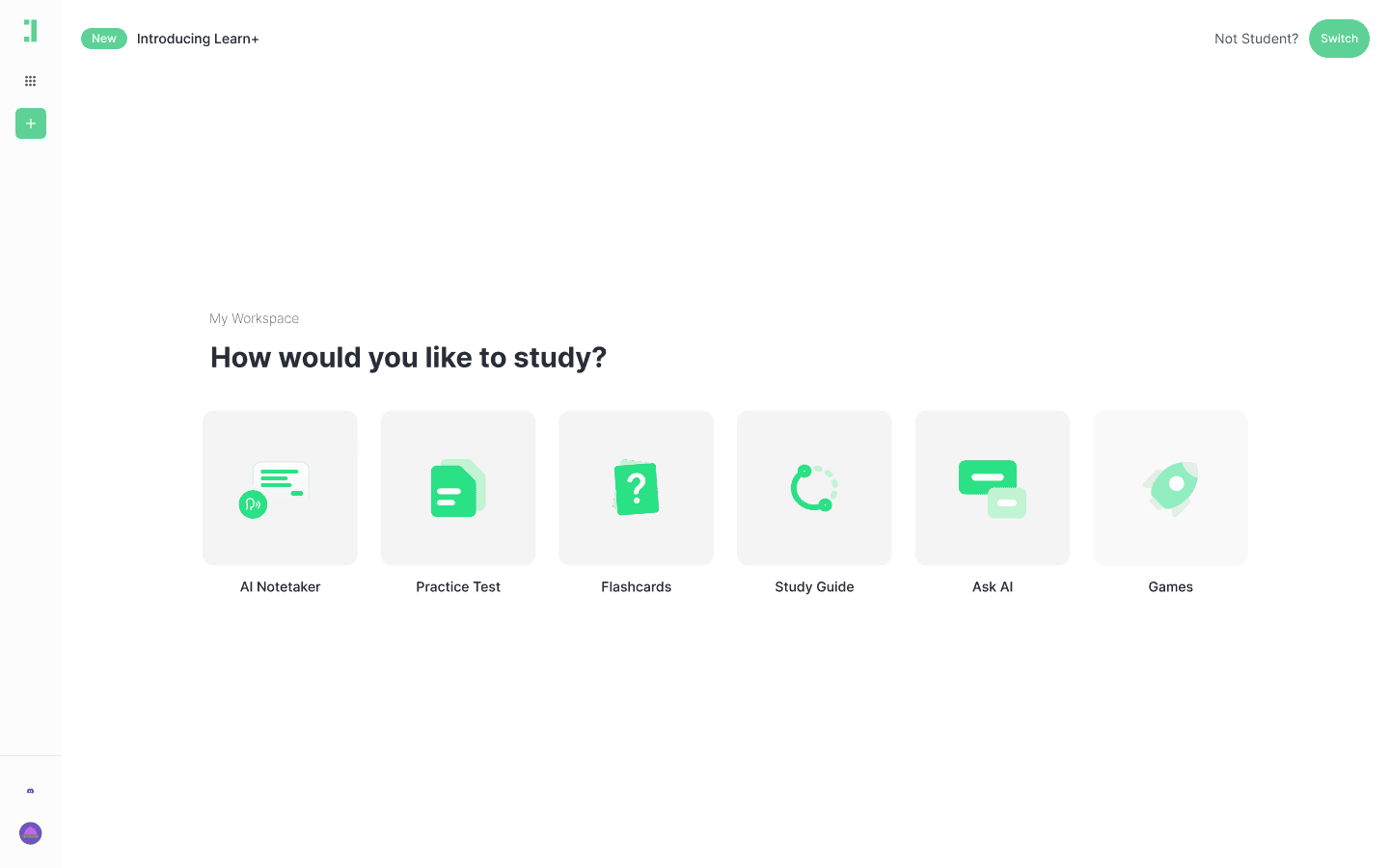
Upload Document: Log into your Duetoday dashboard and click the upload button to import your PDF file.
Select Processing Mode: Choose the 'Notes' or 'Study Guide' option to signal the AI that you want comprehensive reading notes.
Define Focus Areas: Before the AI starts, you can rename headings to match your syllabus or specific project requirements.
Split Chapters: For very long PDFs, use the chapter split feature to ensure the reading notes are organized by specific sections or modules.
Review Extraction: The AI will scan the text; make sure any complex diagrams are correctly referenced in the text extraction phase.
Choose Content Style: Select your preferred note-taking style, such as bullet points, paragraph summaries, or structured outlines.
Generate Notes: Hit the 'Generate' button and wait a few seconds for the AI to process the document into readable segments.
Edit and Refine: Use the built-in editor to add your own thoughts or highlight specific sections the AI identified as important.
Add Cues: If you prefer the Cornell method, toggle the cues section to add recall questions in the margin next to your reading notes.
Tag Key Terms: Identify and bold essential vocabulary within the notes to build a quick-reference glossary.
Summarize Findings: At the end of each section, ensure the AI has provided a 'big picture' summary of the reading.
Export or Save: Once satisfied, save your reading notes to your library or export them to your favorite note-taking app.
What you can generate from your PDF
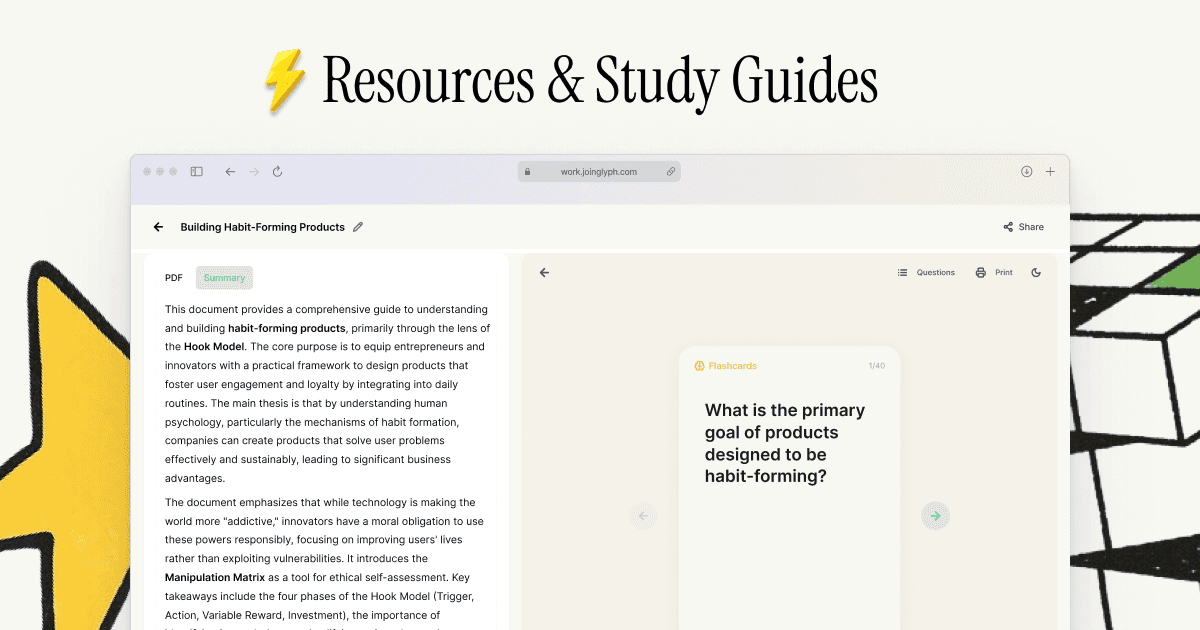
When you convert a PDF to reading notes using Duetoday, you aren't just getting a summary. You are building a full study suite:
Structured Study Guides: Organized by heading with key takeaways for every section.
Cornell Notes: A classic layout featuring cues, notes, and a concluding summary.
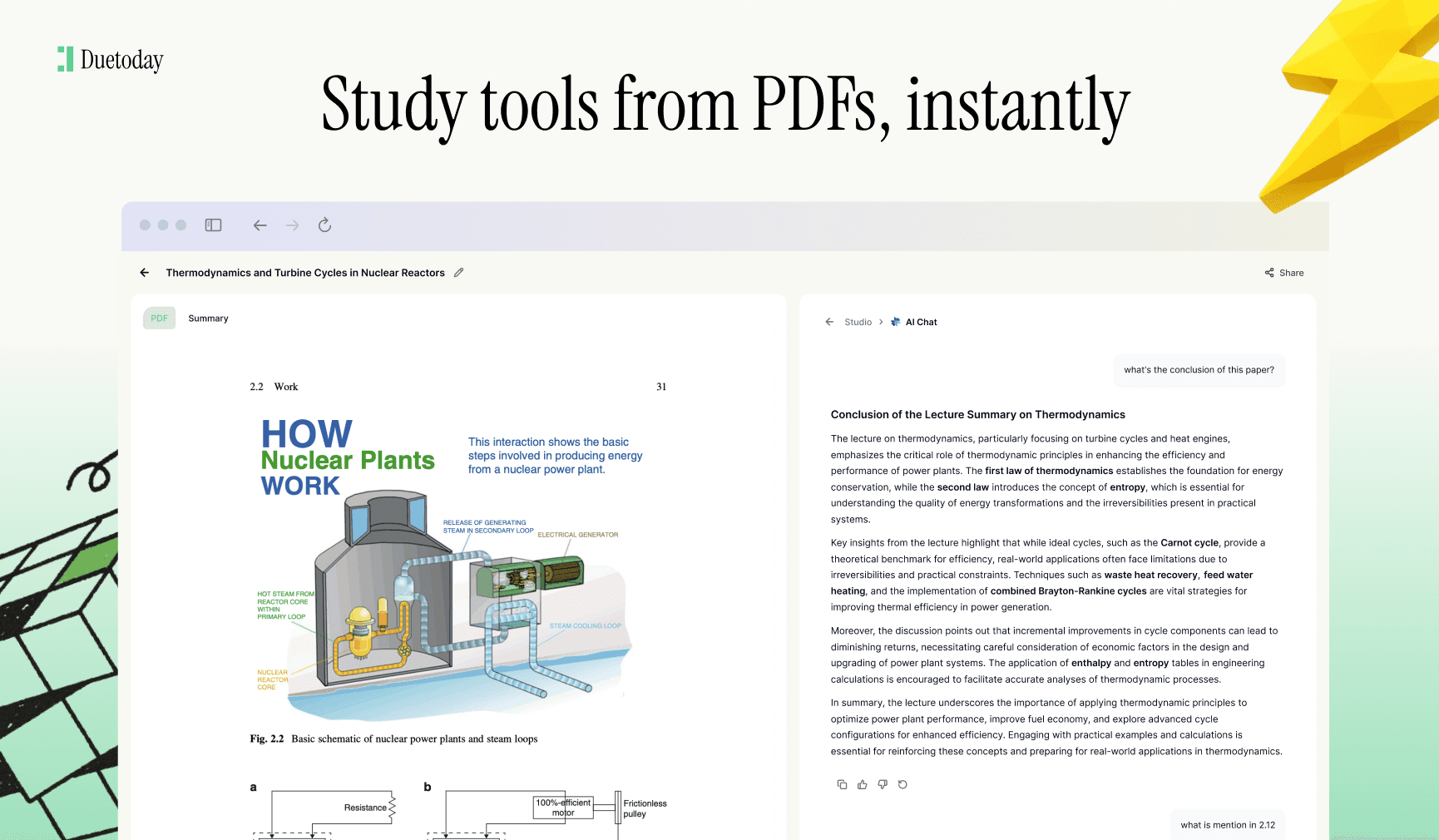
AI Tutor Chat: An interactive assistant that lets you ask specific questions about the content of your reading notes.
Key Glossaries: Automated lists of important terms and their definitions found within the document.
Upload Your PDF Here
Mini example: Understanding Photosynthesis
Input: A 15-page academic PDF explaining the chemical processes of the Calvin Cycle and Light-Dependent reactions in plants.
Output (Reading Notes):
Heading: The Light-Dependent Reactions
Key Note: Occurs in the thylakoid membranes; converts light energy into chemical energy (ATP and NADPH).
Heading: The Calvin Cycle
Key Note: Known as light-independent reactions; uses ATP and NADPH to convert CO2 into glucose.
Summary: Photosynthesis is the 2-stage process of converting solar energy into chemical food for plants.
Tips to get higher-quality results
Clear Layouts: Use PDFs with clear text rather than heavily annotated or messy handwritten scans.
Remove Junk: Delete title pages, bibliographies, or appendix pages before uploading to keep the AI focused only on relevant content.
Add Context: If the PDF is part of a specific course, include that in the title so the AI understands the academic level required.
Split Large Files: If your PDF is over 100 pages, split it into smaller chapters for more detailed and precise reading notes.
Troubleshooting
Scanned PDF not reading: Problem: The text is an image. Fix: Ensure you use a PDF with selectable text or a high-quality scan for better OCR extraction.
Notes are too brief: Problem: The AI skimmed too much. Fix: Re-run the generation and specify 'detailed' or 'comprehensive' in the focus settings.
Table of Contents Missing: Problem: The PDF has no structure. Fix: Manually add chapter breaks in Duetoday to help the AI organize the reading notes.
Formatting is messy: Problem: PDF has multi-column layouts. Fix: Use the 'Clean Text' view in Duetoday to strip away layout distractions before generating.
Start Converting Today
Stop wasting time manually typing out summaries. Turn your next PDF to reading notes automatically and spend your time actually learning the material. Try Duetoday AI now and transform your study habits.

Duetoday is an AI-powered learning OS that turns your study materials into personalised, bite-sized study guides, cheat sheets, and active learning flows.