Generate PDF to Presentation Notes Fast
Learn how to convert any PDF to presentation notes instantly. Use Duetoday to create talking points, flashcards, and summaries from your study materials.
PDF to Presentation Notes: Turn Your Documents Into Clear Speaking Points
Turning a heavy PDF to presentation notes shouldn't take hours of manual highlights and typing. Whether you are a student preparing for a seminar or a professional prepping for a meeting, converting complex documents into digestible talking points is essential for a successful delivery. Duetoday simplifies this process by using AI to extract the most important concepts and formatting them into clear, structured notes that you can use while speaking.
Using an AI-powered tool allows you to focus on your delivery rather than the tedious task of organization. By converting your PDF to presentation notes, you ensure that every key data point and argument is captured without the clutter of a full-length textbook or report.
TL;DR:
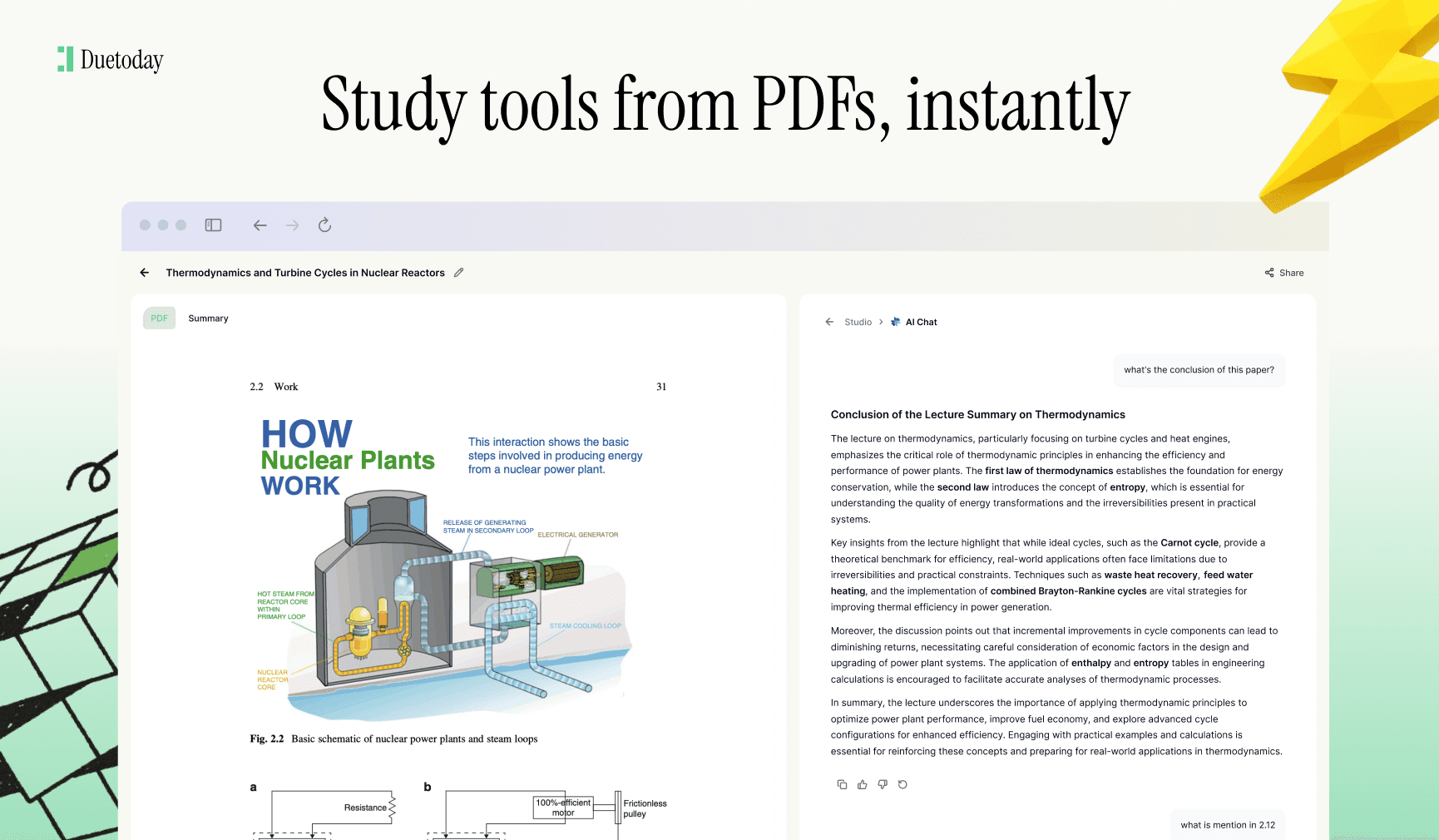
Upload any lecture or document PDF to Duetoday to instantly extract core themes and facts.
Generate structured notes, flashcards, and summaries designed for quick recall during presentations.
Customizable outputs allow you to choose the level of detail and difficulty for your study or speaking prep.
How to do PDF to Presentation Notes in Duetoday (step-by-step)
Create your account: Sign up for Duetoday and head to your dashboard to start a new project.
Upload your PDF: Drag and drop the PDF you want to convert into the upload area. This can be a lecture deck, a research paper, or a business report.
Set the Focus: Use the settings to tell the AI what you need most. You can choose to focus on definitions, data points, or a general overview.
Split into Chapters: For long PDFs (30+ pages), use the split chapter feature to organize your presentation notes by section or topic.
Generate Initial Notes: Click the generate button to let the AI process the document into a structured outline.
Refine the Headings: Review the generated headers; you can rename them to match your presentation slides for better synchronization.
Select Question Style: If you want to use the notes for a Q&A session, choose the MCQ or short-answer quiz style to prep for attendee questions.
Customize the Detail: Adjust the output settings to 'Bullet Points' for skimmable speaking notes or 'Paragraph' for a more detailed script.
Review and Edit: Go through the generated content to add personal anecdotes or specific company/class data.
Export Your Prep: Save your notes or flashcards so you can access them on your tablet or laptop during the live event.
Chat with the AI: Use the AI tutor chat to ask for specific analogies or simpler ways to explain the complex parts of your PDF.
Final Review: Use the summary view to get a 1-minute elevator pitch of your entire document.
Upload Your PDF Here
What you can generate from your PDF
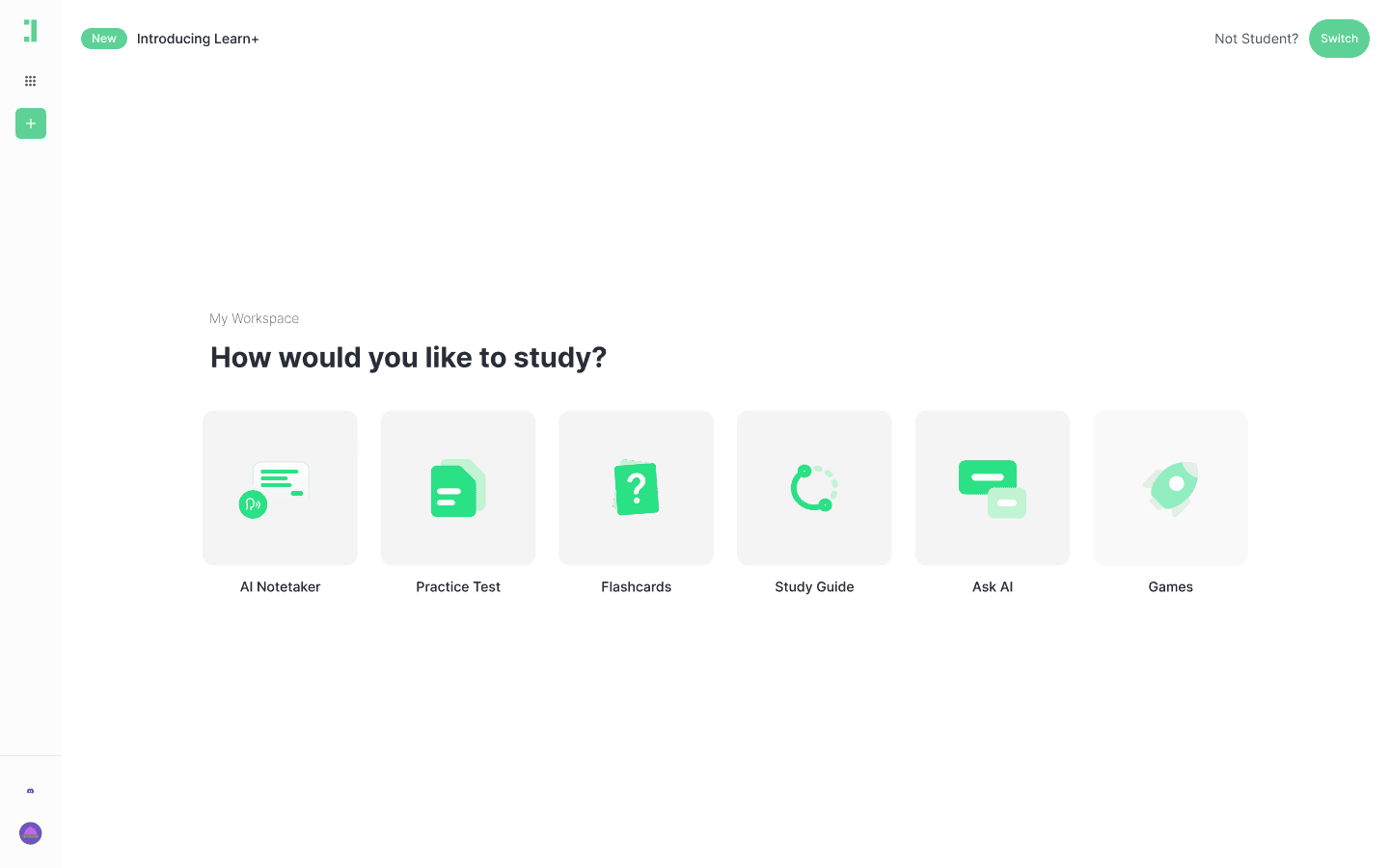
When you convert your PDF to presentation notes, you aren't just getting a wall of text. You can choose specific outputs that help you master the material:
Bullet-Point Outlines: Clean, skimmable lists that serve as perfect talking points for your slides.
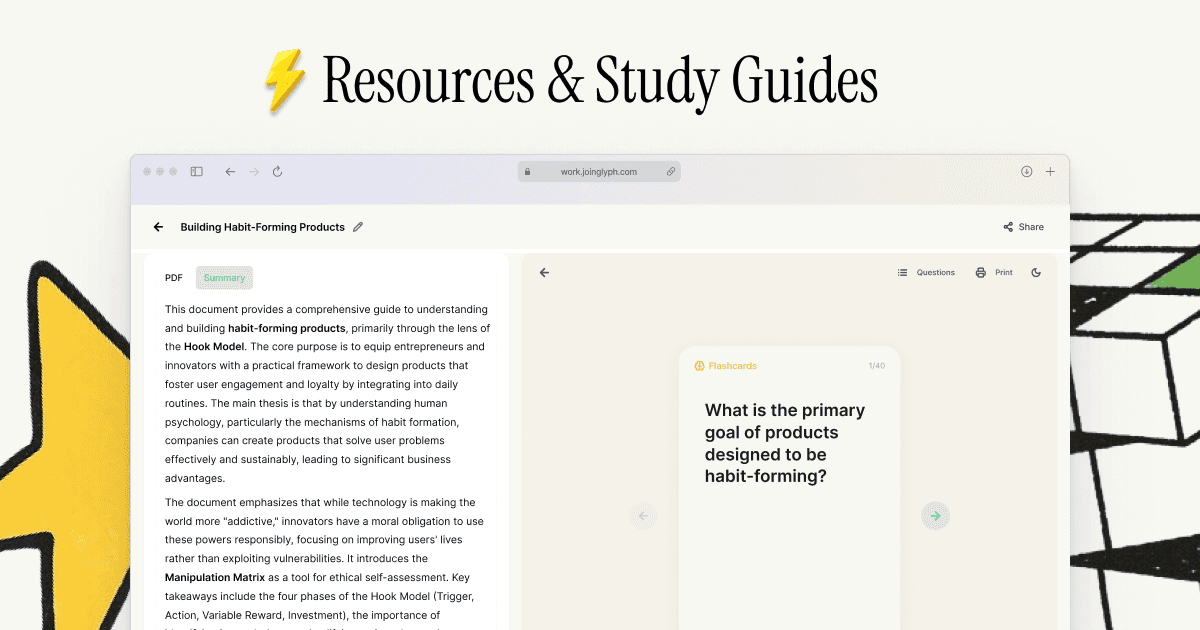
Flashcards: Perfect for memorizing key statistics or definitions before you go on stage.
AI Tutor Chat: A focused chatbot that knows your PDF and can help you brainstorm answers to potential audience questions.
Executive Summary: A high-level wrap-up of the document's main conclusions.
Mini example (What the output looks like)
Example Topic: The Basics of Photosynthesis (Biology 101)
Input: A 15-page academic PDF explaining the chemical processes of how plants convert light into energy.
Output (Presentation Notes):
The Goal: Conversion of solar energy into chemical energy (glucose).
Key Organelle: The Chloroplast – contains chlorophyll where the reaction happens.
Light-Dependent Phase: Occurs in the thylakoid membrane; produces ATP and NADPH.
Calvin Cycle: The 'dark' reaction; takes place in the stroma and fixes CO2.
Final Product: One molecule of G3P, eventually forming glucose for the plant's growth.
Tips for better results
Clean the PDF: Remove blank pages or unnecessary appendices before uploading to keep the AI focused.
Use High-Quality Documents: Ensure the text isn't blurry so the AI can accurately extract every data point.
Provide Context: If you are presenting to a specific audience, use the AI chat to rephrase the notes for that specific group.
Organize by Chapter: If your PDF covers multiple topics, use the chapter split feature to keep your notes organized by slide deck sections.
Troubleshooting
Scanned PDF not reading: Try using an OCR (Optical Character Recognition) tool or upload a version of the file that has selectable text.
Output is too long: Change your settings to 'Summary' or 'Short Bullets' to reduce the word count for your notes.
Generic output: Use the AI tutor to ask for 'specific data points' or 'unique quotes' from the text to make your notes more concrete.
Formatting is messy: Check if the PDF has complex multi-column layouts; if so, processing it chapter-by-chapter usually fixes readability issues.
Master your next presentation
Stop wasting time manually summarizing your reading material. Using Duetoday to turn your PDF to presentation notes gives you the confidence to speak clearly without being glued to a script. Ready to simplify your workflow? Try Duetoday today and transform your documents into perfect speaking notes in seconds.

Duetoday is an AI-powered learning OS that turns your study materials into personalised, bite-sized study guides, cheat sheets, and active learning flows.