The Easiest Way to Convert PDF to Obsidian notes
Learn how to transform any PDF into structured Obsidian notes using Duetoday AI. Streamline your PKM workflow with automated summaries and flashcards.
PDF to Obsidian notes
Transforming a PDF to Obsidian notes is the best way to turn static documents into a dynamic personal knowledge base. Using Duetoday, you can automate the tedious process of manual transcription and formatting, allowing you to focus on learning rather than organizing.
TL;DR:
Upload any PDF to Duetoday to generate structured markdown-ready content.
Create summaries, flashcards, and quizzes that fit perfectly into your Obsidian vault.
Boost your study efficiency by connecting AI-generated insights to your linked notes.
How to do PDF to Obsidian notes in Duetoday (step-by-step)
Create your Duetoday account: Head to the Duetoday dashboard and log in to access your workspace.
Upload your PDF: Click the upload button and select the document you want to convert into Obsidian notes.
Name your project: Give your upload a clear title that matches your Obsidian folder structure for easier organization later.
Select text extraction: Allow the AI to parse the text, ensuring it captures headings and subheadings accurately.
Split into chapters: If your PDF is long, use the chapter split feature to create distinct sections for different Obsidian files.
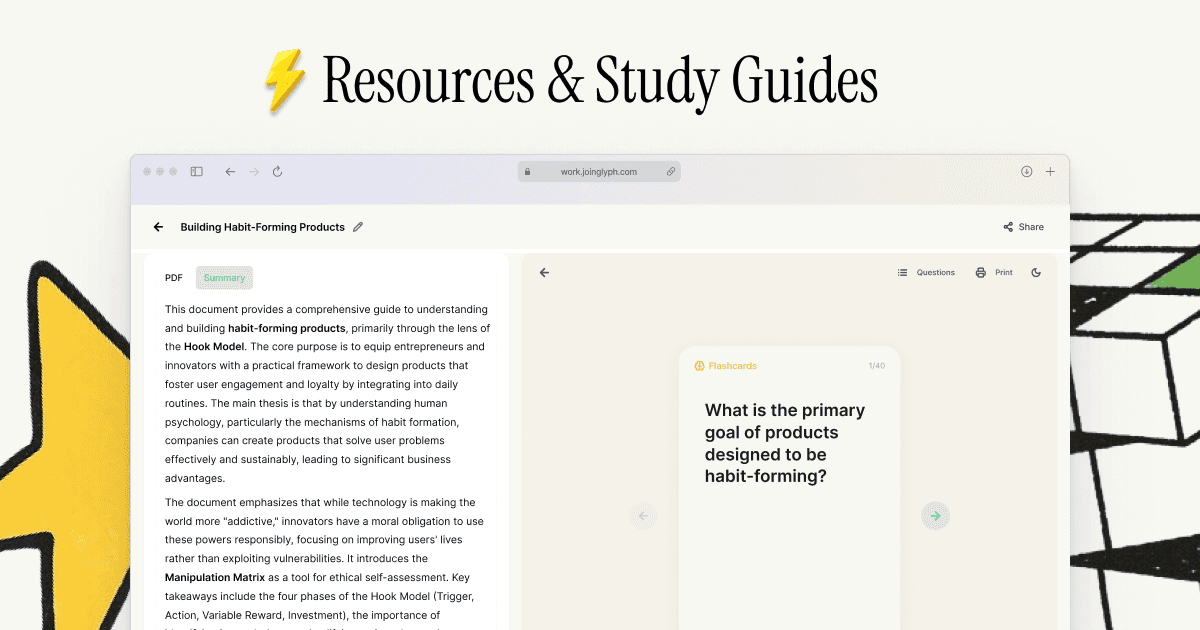
Generate a Study Guide: Choose the 'Study Guide' option to get a structured summary that uses markdown-style headers.
Create Flashcards: Select the flashcard generator to create 'Front/Back' or 'Cloze' deletions for your active recall sessions.
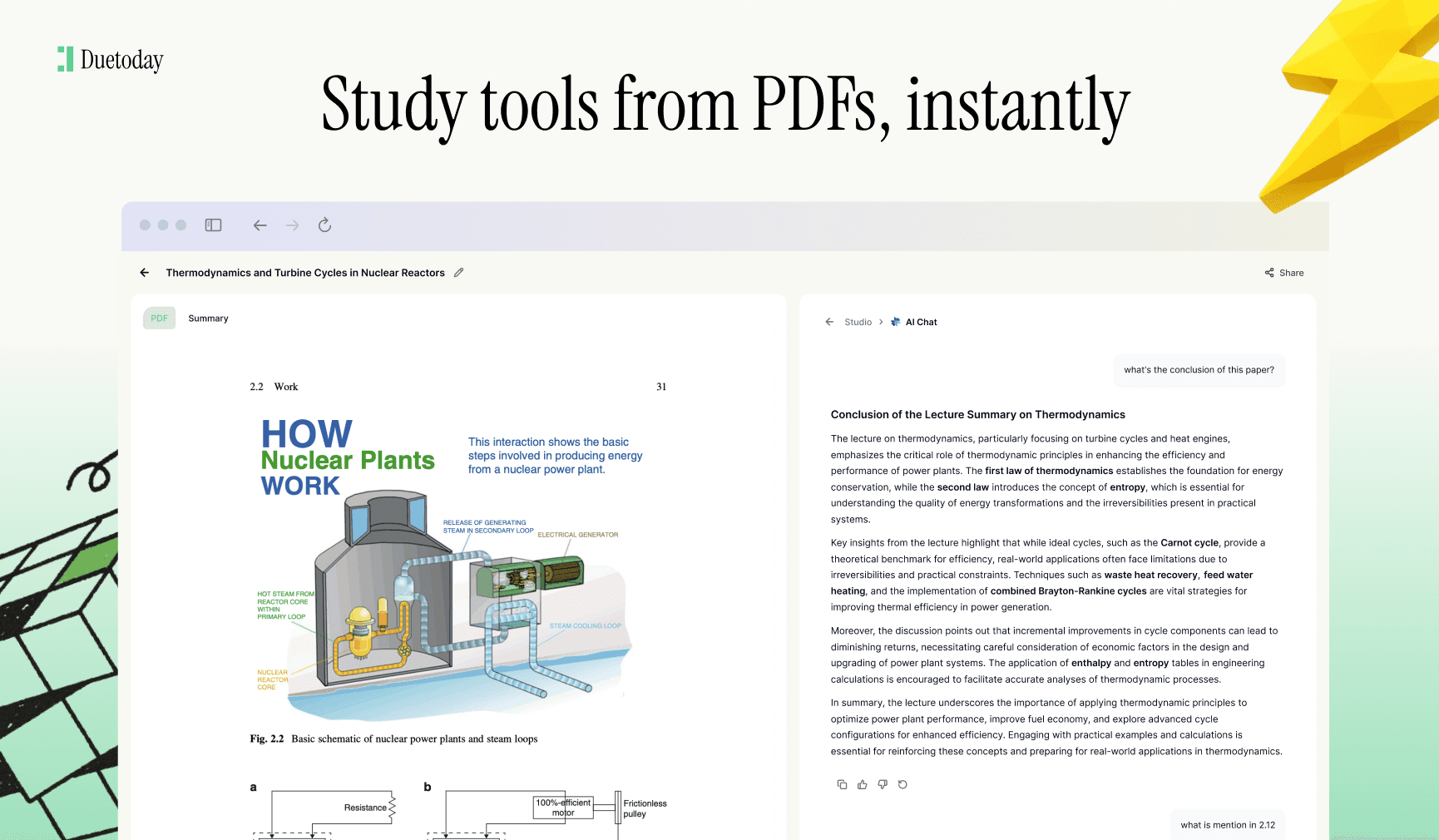
Refine with AI Tutor: Use the AI chat to ask for specific definitions or to simplify complex paragraphs before exporting.
Choose your output style: Opt for bulleted lists and bold terms to make the content more skimmable within the Obsidian UI.
Copy to Markdown: Once the generated notes are ready, use the copy function to grab the text.
Paste into Obsidian: Open a new note in Obsidian and paste the content; the formatting will remain intact.
Link your notes: Use the
[[]]syntax in Obsidian to connect your new AI-generated notes to existing topics.
What you can generate from your PDF
Duetoday helps you create professional-grade outputs that are optimized for your Obsidian vault:
Structured Summaries: Hierarchical notes with H2 and H3 tags ready for markdown.
Flashcards: Definition-based cards that can be used with Obsidian plugins like Spaced Repetition.
Concept Maps: Bulleted lists that outline the relationship between different topics in your PDF.
Quiz Questions: Self-assessment questions to test your knowledge directly within your notes.
Upload Your PDF Here
Mini example: Photosynthesis Basics
Input: A 3-page PDF explaining the light-dependent and light-independent reactions of photosynthesis.
Output (Obsidian Study Guide):
# Photosynthesis Overview: The process by which plants convert light energy into chemical energy.
## Light-Dependent Reactions: Occur in the thylakoid membranes; require sunlight to produce ATP and NADPH.
## The Calvin Cycle: Also known as light-independent reactions; takes place in the stroma and fixes CO2.
## Key Term: Chlorophyll: The primary pigment responsible for absorbing light.
## Summary: Energy transformation is the core of plant survival and atmospheric oxygen production.
Tips to get higher-quality results
Clean up your PDF: Remove table of contents or reference pages to keep the AI focused on the core material.
Use Descriptive Titles: Rename your project folders in Duetoday to match your Obsidian vault categories for seamless organization.
Give Context: Use the AI chat to tell Duetoday what you want to focus on (e.g., Focus on the formulas in this chemistry PDF).
Verify Formatting: Check that the headers (H2, H3) are where you want them before copying into Obsidian.
Troubleshooting
Scanned PDF is blurry → Use an OCR pre-processor or upload a higher-resolution version for better text extraction.
Output is too long → Use the summarize feature or split the PDF into smaller chapters to get concise notes.
Formatting is messy in Obsidian → Ensure you are using 'Paste as Plain Text' or check your Obsidian CSS settings for markdown headers.
Missing key details → Ask the AI Tutor specifically for the missing information using the original PDF as the source.
Ready to organize your brain?
Stop wasting hours manually typing out notes from textbooks and research papers. Convert your PDF to Obsidian notes in seconds and start building your second brain today. Try Duetoday for free and transform the way you study.

Duetoday is an AI-powered learning OS that turns your study materials into personalised, bite-sized study guides, cheat sheets, and active learning flows.