Generate a Custom Glossary from PDF with Duetoday AI
Learn how to convert any PDF to glossary instantly using Duetoday. Our AI extracts key terms and definitions to help students and professionals master complex topics.
PDF to glossary
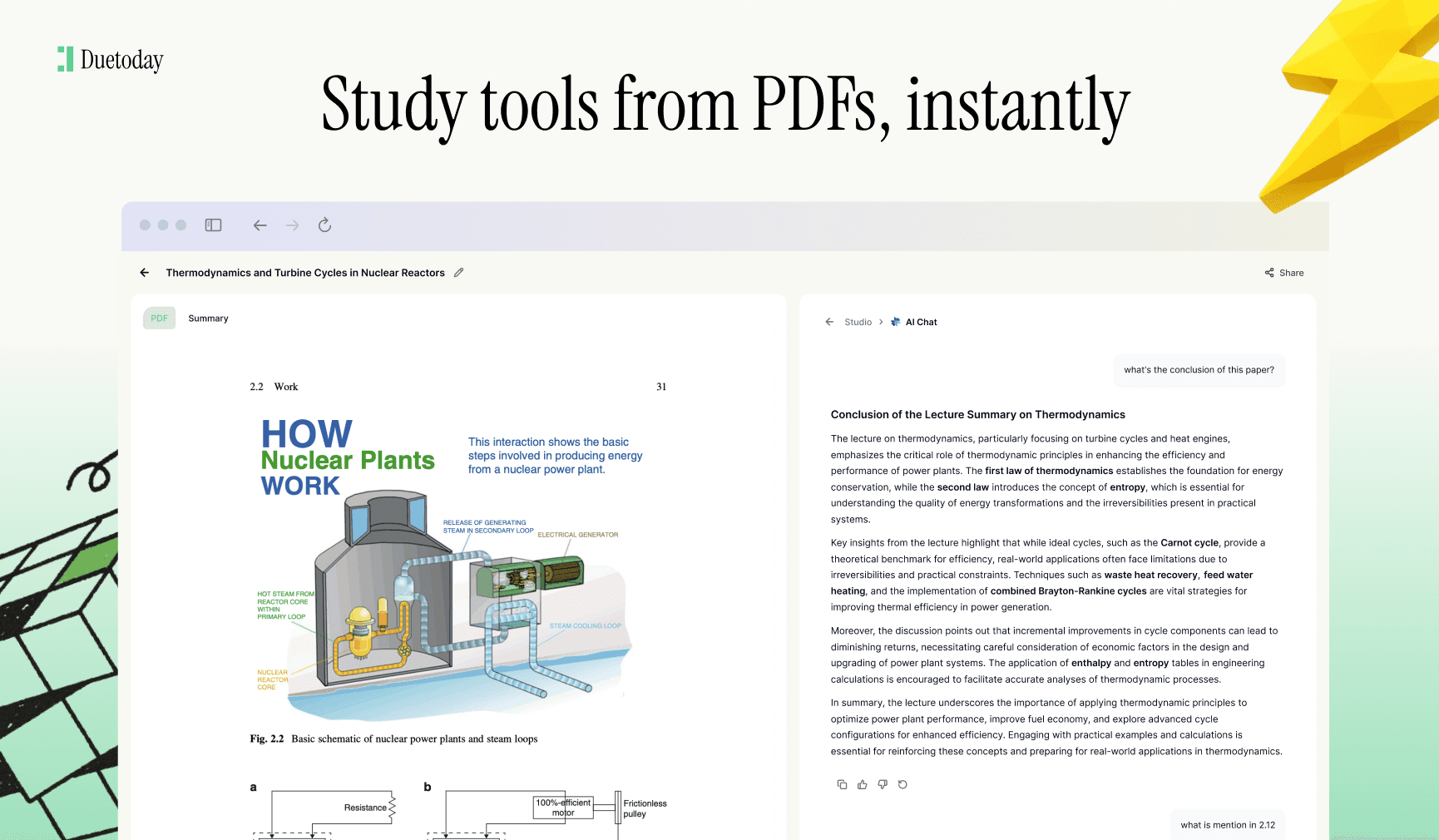
Creating a manual list of terms can take hours, but using an AI tool to convert a PDF to glossary saves you time and ensures accuracy. Whether you are studying for a medical board exam or reviewing a technical manual, having a centralized list of definitions is essential for retention.
Duetoday makes the process seamless by scanning your documents and identifying the most important academic or professional terminology. Within seconds, you can transform a dense textbook chapter into a searchable, structured glossary designed for deep learning.
TL;DR:
Upload any PDF and let the AI extract complex terms and definitions automatically.
Customize your glossary style to match your specific study needs or professional field.
Export your results or continue studying with interactive AI tutoring.
How to do PDF to glossary in Duetoday (step-by-step)
Create your account: Sign up for Duetoday and head to your dashboard to start a new project.
Upload your PDF: Drag and drop the document you want to analyze or select it from your local files.
Set the focus: Use the extraction settings to tell the AI you want to prioritize terminology and definitions.
Select specific pages: If your PDF is long, use the page range selector to focus only on chapters with heavy jargon.
Generate the glossary: Click the button to start the AI analysis; Duetoday will scan for bolded terms, italicized words, and contextual definitions.
Refine the definitions: Once generated, you can edit the text to make the language simpler or more technical.
Split into chapters: If your PDF covers multiple subjects, use the 'split' feature to organize your glossary by topic.
Rename headings: Organize your glossary by changing the default titles to match your syllabus or project names.
Choose the output style: Select between a simple list format or a more detailed dictionary-style layout.
Review for accuracy: Quickly scan the results to ensure every key term from the text was captured.
Add manual entries: If the AI missed a niche acronym, you can manually add terms to keep your list complete.
Save and export: Save the glossary to your library or export it to use in other study applications.
What you can generate from your PDF
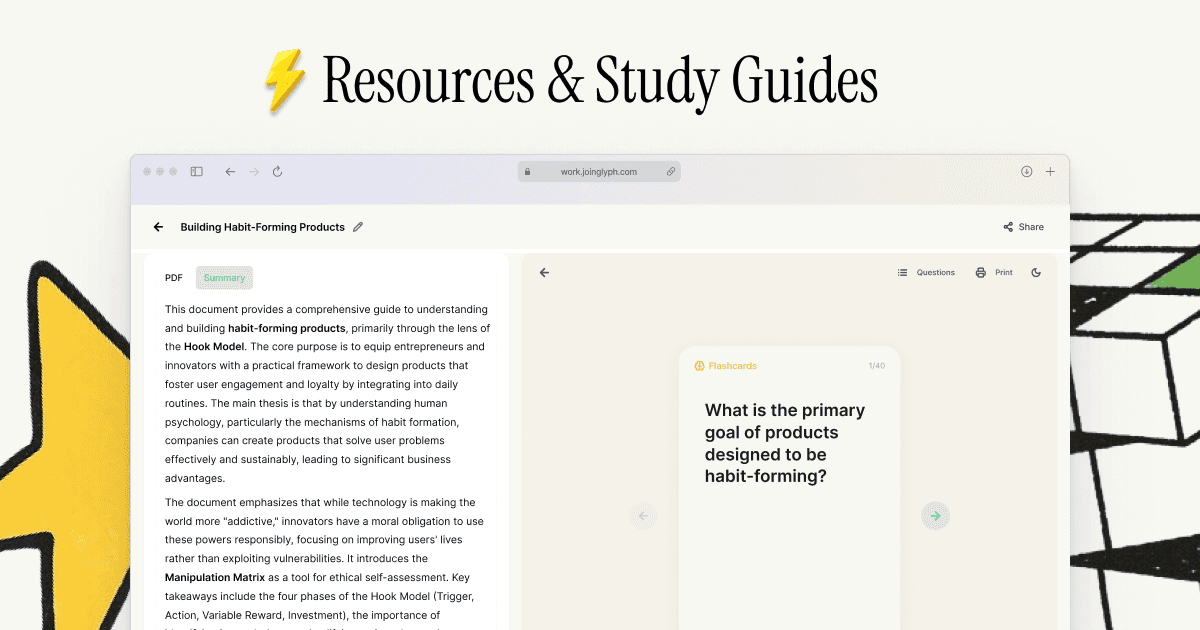
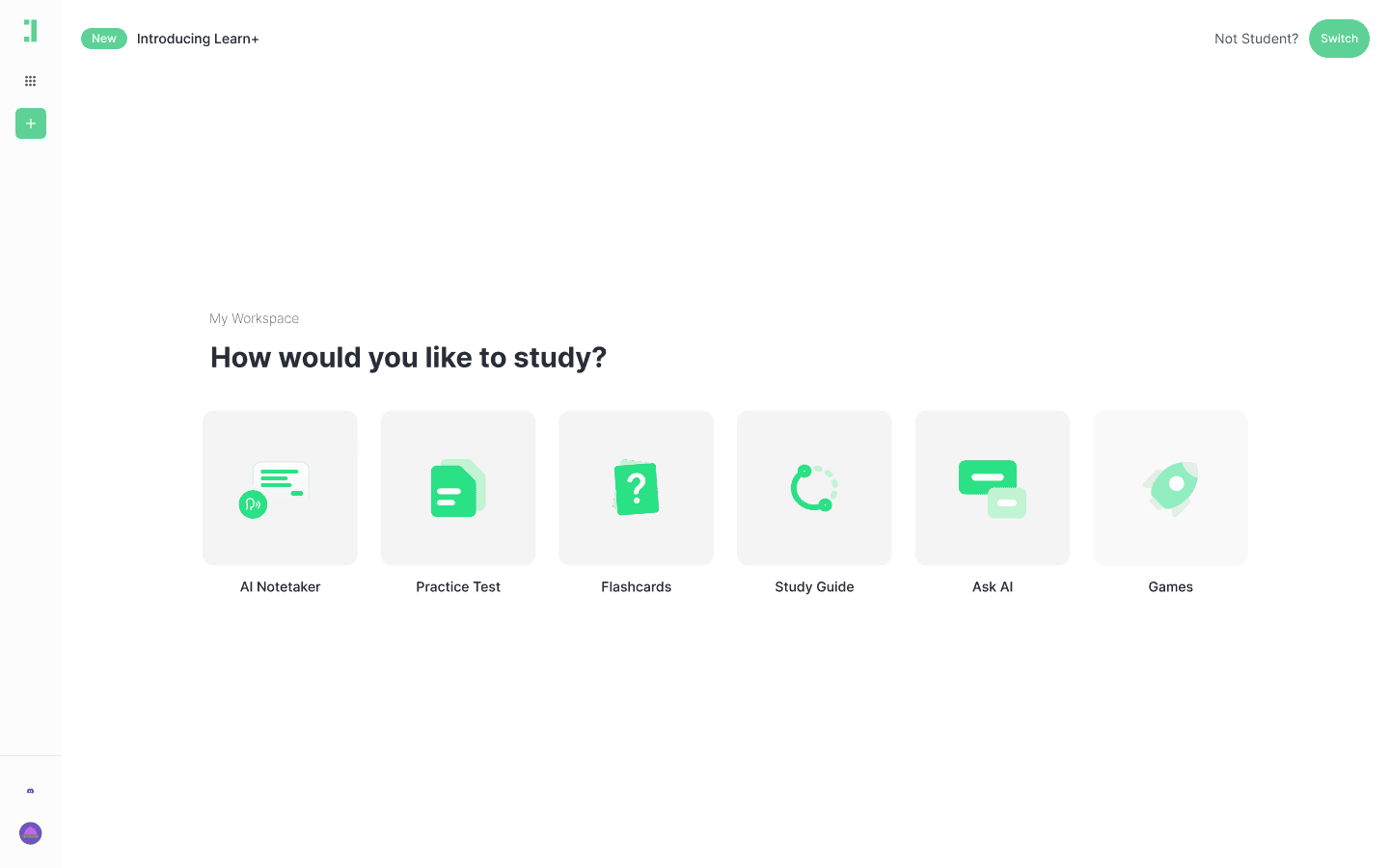
When you convert a PDF to glossary, Duetoday doesn't just give you a list of words; it creates a foundation for building your knowledge base. You can generate:
Comprehensive Term Sheets: A clean list of every technical word found in the document.
Flashcards: Transform your glossary terms into interactive flashcards for active recall.
Contextual Quizzes: Test your knowledge of the terminology with auto-generated multiple-choice questions.
AI Tutor Support: Ask the AI to explain any specific term in simpler language if the PDF definition is too complex.
Upload Your PDF Here
Mini example: Introduction to Photosynthesis
Input: A 5-page PDF document explaining the chemical processes of plant energy conversion.
Output (Glossary Sample):
Chlorophyll: A green pigment found in cyanobacteria and the chloroplasts of algae and plants that allows for the absorption of light energy.
Stomata: Tiny pores in the leaf or stem of a plant through which gases and water vapor pass.
Adenosine Triphosphate (ATP): The primary energy carrier in all living organisms, used to power cellular processes.
Thylakoid: Flattened sacs inside a chloroplast where the light-dependent reactions of photosynthesis take place.
Calvin Cycle: A set of chemical reactions that take place in the stroma of the chloroplast during the light-independent phase.
Tips to get higher-quality results
Clean the PDF: Before uploading, remove any cover pages, advertisements, or bibliographies that might clutter the glossary.
Be specific: If you only need definitions for a specific chapter, use the chapter selection tool to improve the focus of the AI.
Check for clarity: Ensure your PDF isn't a blurry photo; clear text enables the AI to extract definitions with 100% accuracy.
Use Context: If your PDF contains heavy jargon, use the AI tutor feature to ask for real-world examples for each glossary term.
Troubleshooting common issues
Scanned PDF not reading well: If the text is unrecognizable, try using an OCR engine to convert it to a text-based PDF or find a clearer version of the document.
Output is too generic: If the definitions are too simple, adjust the settings to 'technical mode' or prompt the AI to use more academic language.
Missing key terms: Ensure the terms are actually defined in the text. If the PDF assumes prior knowledge, the AI might skip them unless told otherwise.
File size too large: If the upload fails, try splitting the PDF into smaller sections or chapters before uploading to Duetoday.
Master your material today
Stop wasting hours manually copying and pasting definitions. Use Duetoday to instantly convert your PDF to glossary and spend more time actually learning. Whether you are prepping for a quiz or mastering a new professional skill, our AI tools are built to help you succeed faster.
Ready to simplify your study routine? Try Duetoday for free and generate your first glossary now.

Duetoday is an AI-powered learning OS that turns your study materials into personalised, bite-sized study guides, cheat sheets, and active learning flows.