The Easiest Way to Convert a PDF to definitions list
Learn how to transform any PDF into a structured definitions list using Duetoday's AI study tools. Perfect for students and professionals.
PDF to definitions list: Streamlining Your Study Process
Working with a PDF to definitions list is the fastest way to master complex terminology and technical jargon. Converting a dense PDF to definitions list allows you to focus on the core concepts without getting lost in pages of fluff.
TL;DR:
Upload any PDF and turn it into a clean list of key terms and definitions.
Organize your study material automatically using Duetoday's AI engine.
Save hours of manual typing and highlighting by automating the extraction process.
How to do PDF to definitions list in Duetoday (step-by-step)
Log in to Duetoday: Access your dashboard and click on the 'Upload' button to get started.
Select your PDF: Choose the document you want to convert. For best results, ensure the text is searchable.
Define your scope: Use the 'Chapter Selection' tool to choose specific pages or the entire document for your PDF to definitions list.
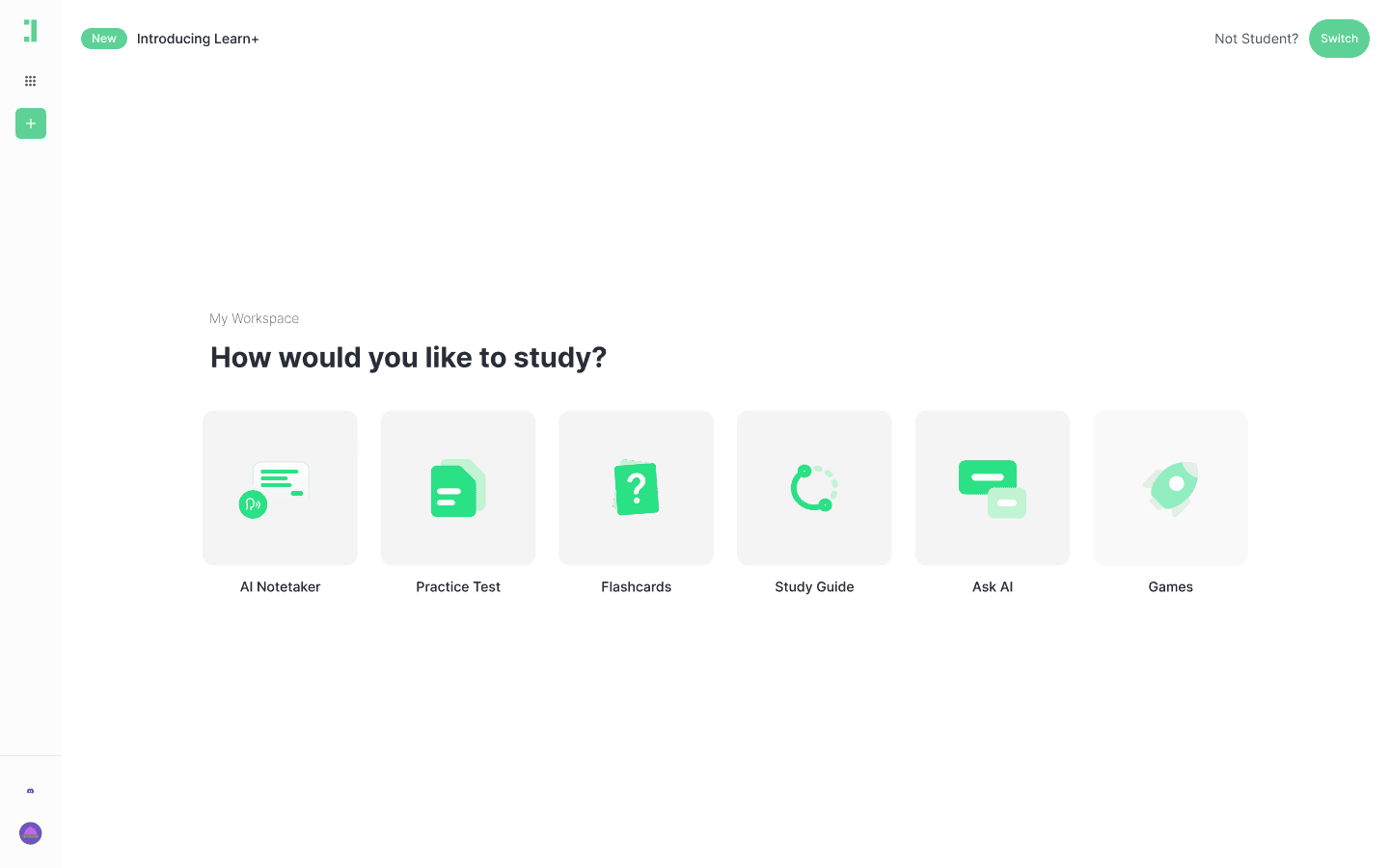
Choose Output Type: Select 'Study Guide' or 'Flashcards' from the generation menu to trigger term extraction.
Adjust Depth: Use the 'Complexity' slider to determine if you want simple definitions or in-depth technical explanations.
Rename Headings: Customize the sections of your list so they align with your syllabus or project requirements.
Extract Key Terms: Click 'Generate' and let the AI scan for bolded terms, italicized vocabulary, and contextual definitions.
Review and Edit: Once the list is generated, you can click on any definition to tweak the wording for clarity.
Split Chapters: If your PDF is too large, split it into smaller modules to create categorized lists by topic.
Select Question Style: If you want to test yourself, toggle on 'Review Mode' to hide the definitions.
Format List: Choose between bullet points or a structured glossary layout for your final output.
Export: Download your completed definitions list as a PDF, Word doc, or sync it to your digital notebooks.
What you can generate from your PDF
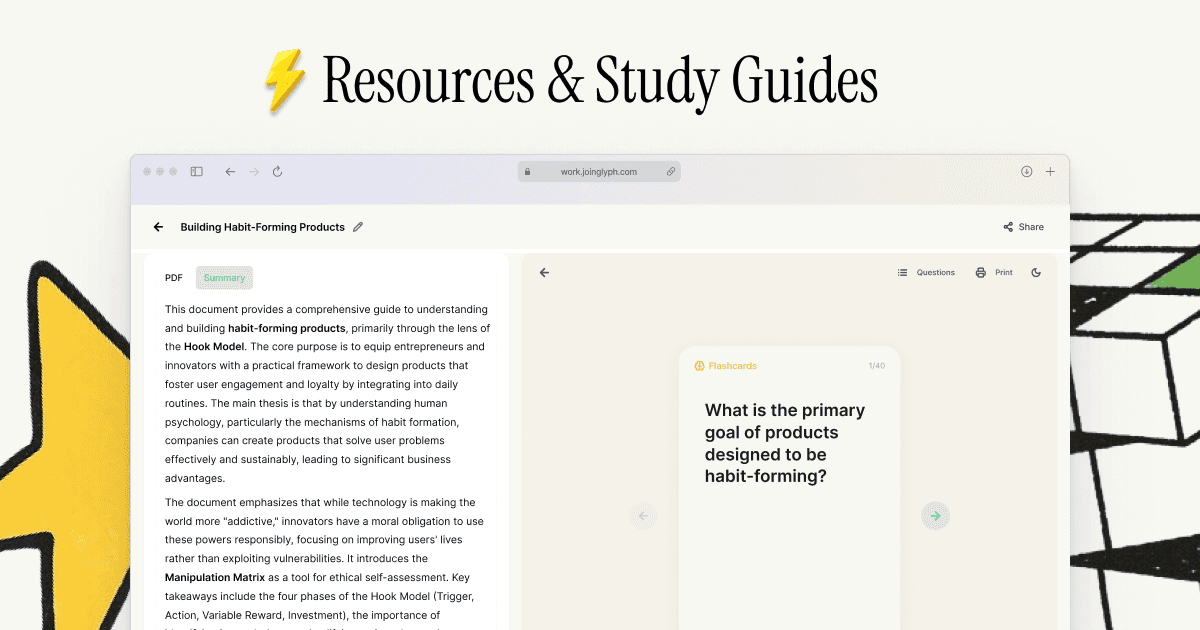
Beyond a simple text list, Duetoday helps you turn your PDF into active learning tools:
Flashcards: Automatic creation of term/definition pairs for rapid memorization.
Structured Glossary: A categorized list of every important concept found in your upload.
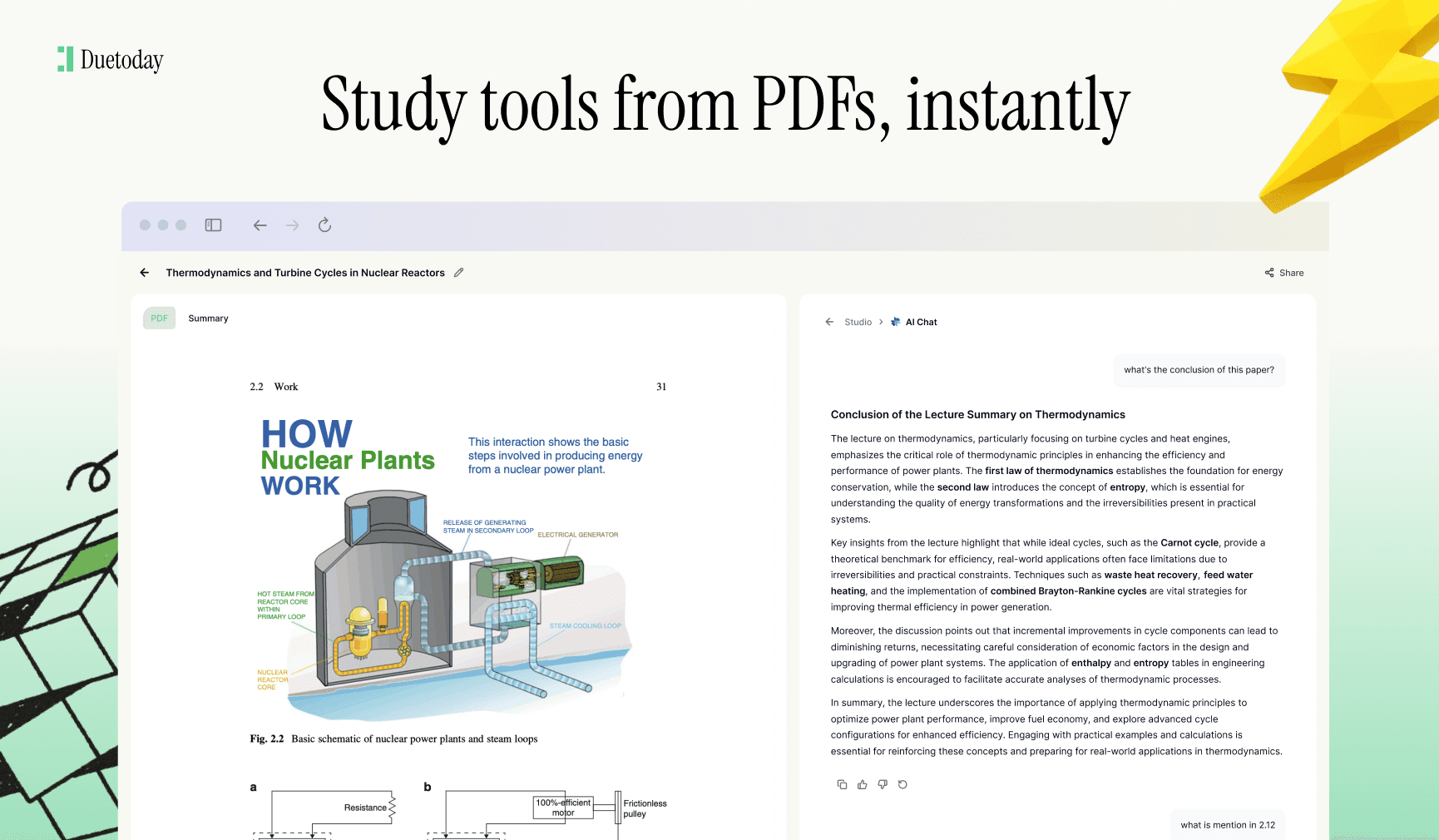
AI Tutor Chat: A dedicated bot you can ask to explain any definition from your list in simpler terms.
Upload Your PDF Here
Mini example: Biology - The Cell Structure
Input: A 5-page PDF document explaining the different organelles found in animal and plant cells and their specific functions.
Output (Definition List Sample):
Mitochondria: Known as the powerhouse of the cell; the organelle responsible for ATP (energy) production through cellular respiration.
Ribosomes: Small structures responsible for protein synthesis by translating genetic code into polypeptide chains.
Nucleus: The control center of the cell containing genetic material (DNA) and coordinating cell activities like growth and reproduction.
Cytoplasm: The jelly-like substance that fills the cell and surrounds the organelles, facilitating the transport of materials.
Cell Membrane: A biological membrane that separates the interior of the cell from the outside environment, regulating the entry and exit of molecules.
Tips to get higher-quality results
Ensure Text Clarity: Use high-resolution PDFs where text can be highlighted to help the AI identify keywords more effectively.
Remove Junk Pages: Delete the table of contents, index, or reference pages before uploading to prevent the AI from extracting irrelevant terms.
Provide Context: If the PDF is highly technical, adding a small note about the subject matter help the AI distinguish between common and specialized terms.
Use Section Selection: Instead of processing a 500-page book, upload individual chapters to get more specific and manageable definition lists.
Troubleshooting
Problem: Scanned PDF not reading → Fix: Ensure the scan is clear and upright. Duetoday's OCR will handle the rest, but blurry text can hinder accuracy.
Problem: List is too long/overwhelming → Fix: Use the 'Filter' or 'Simplify' option to only show the most critical terms.
Problem: Definitions are too generic → Fix: Change the 'Focus' settings to 'Academic' to ensure the AI uses the specific context from the PDF rather than general knowledge.
Problem: Missing specific terms → Fix: You can manually add a term to the list, and the AI will scan the document to provide the corresponding definition for you.
Start Building Your Definitions List Today
Stop wasting time manually scouring pages for bolded words. Let Duetoday handle the heavy lifting of turning your PDF to definitions list so you can focus on actually learning the material. Whether you are prepping for a medical exam or a corporate certification, our AI tools are designed to make your life easier.
Ready to simplify your study routine? Try Duetoday now and see how easy it is to master your materials.

Duetoday is an AI-powered learning OS that turns your study materials into personalised, bite-sized study guides, cheat sheets, and active learning flows.