Convert any PDF to Cornell notes in seconds
Learn how to transform your lecture slides and textbooks from PDF to Cornell notes automatically using Duetoday's AI study tools.
PDF to Cornell notes
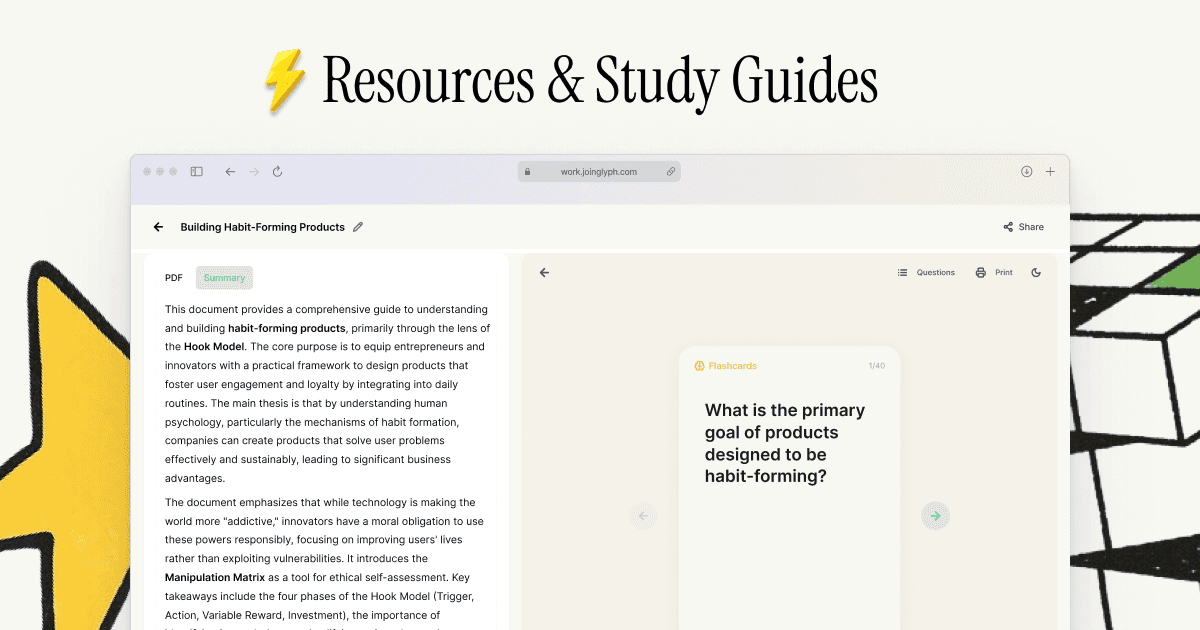
Converting a PDF to Cornell notes is the fastest way to turn dense academic material into a structured study system. When you convert your PDF to Cornell notes, you leverage a proven layout that separates main ideas, supporting details, and summaries for maximum retention.
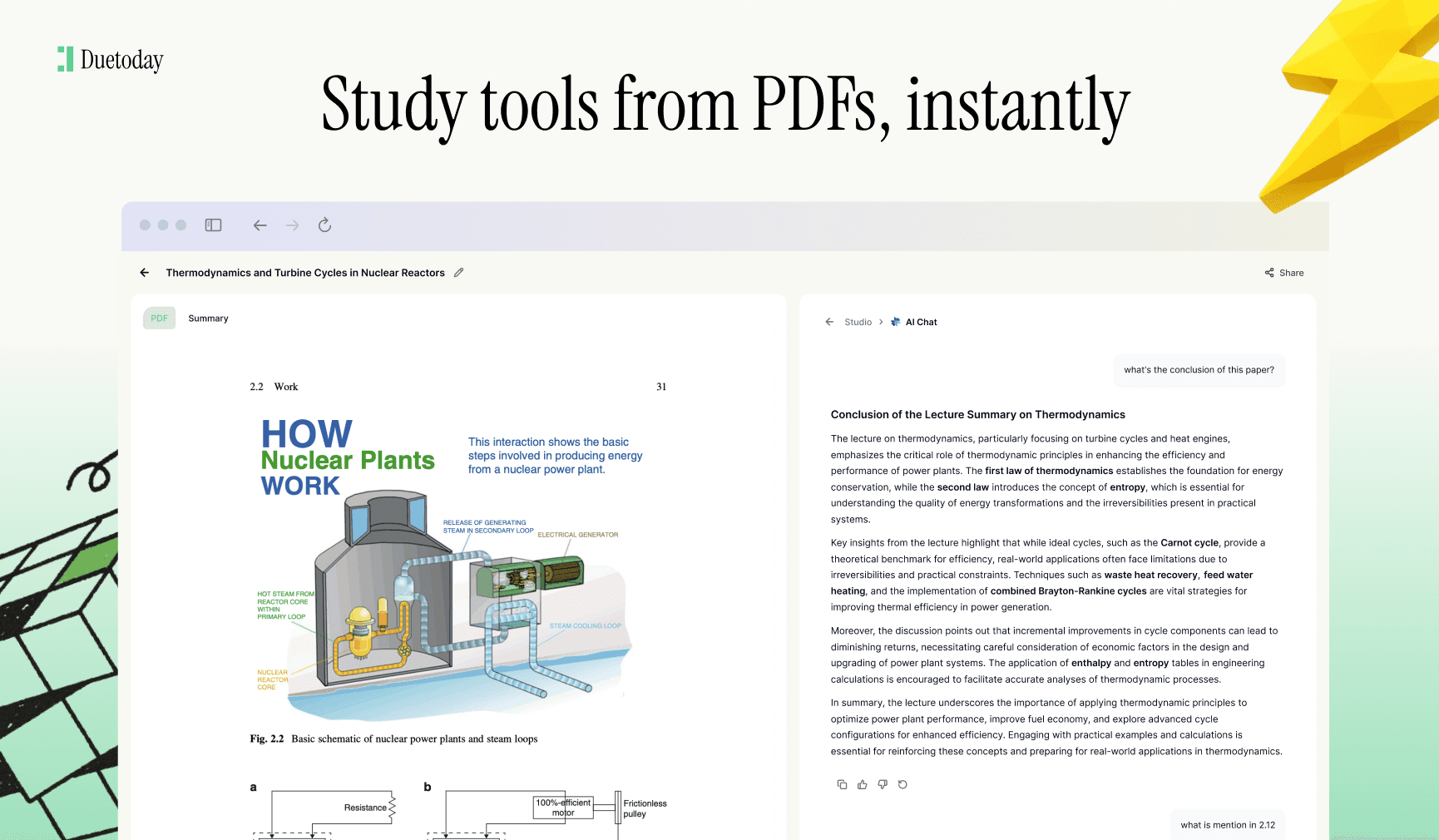
Duetoday makes this process instant, allowing students and busy professionals to upload complex documents and receive organized notes without the manual labor of hand-writing every cue. Whether you are prepping for a midterm or summarizing a business report, this tool streamlines your workflow.
TL;DR:
Automated Formatting: Upload any PDF and get a structured Cornell layout in seconds.
Active Learning: AI generates the 'Cues' and 'Summary' sections so you can focus on testing yourself.
Customizable: Adjust the depth of your notes based on chapter complexity or difficulty level.
How to do PDF to Cornell notes in Duetoday (step-by-step)
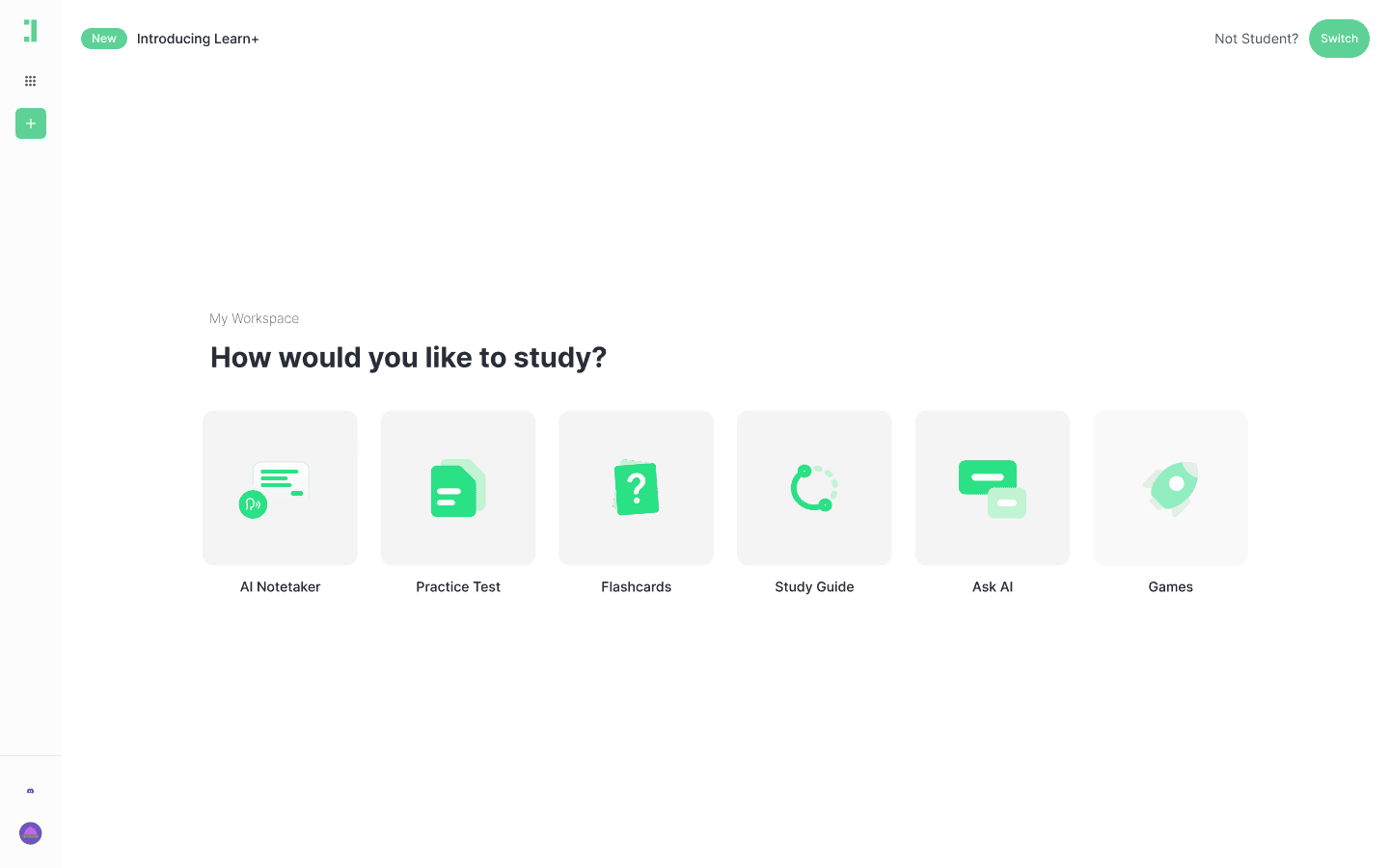
Create your account: Head to Duetoday and sign up to access your dashboard.
Upload your PDF: Click the 'Upload' button and select the document you want to convert into notes.
Set the document title: Rename your file to something specific like 'Biology Chapter 4 - Cell Division' for better organization.
Select 'Cornell Notes' mode: Choose the note-taking style from the generation options menu.
Define the scope: Use the chapter selection tool if your PDF is long; this ensures the AI focuses on specific sections rather than a generic overview.
Choose the complexity: Select the target academic level (e.g., Undergraduate or Graduate) to adjust the vocabulary and depth of the output.
Initiate generation: Click 'Generate' and watch as the AI parses the PDF text into cues, notes, and summaries.
Edit the Cues: Review the left-hand column and rename headings if you want more specific triggers for your memory.
Verify the Detail: Check the 'Body' section for accuracy; you can add or remove bullet points manually if needed.
Generate a Summary: Ensure the summary at the bottom accurately reflects the core thesis of your PDF sections.
Organize into folders: Move your new Cornell notes into a specific course folder within Duetoday to stay organized.
Export or Study: Use the built-in AI tutor to quiz yourself on the cues you just generated.
What you can generate from your PDF
Beyond standard text conversion, Duetoday extracts high-value study assets from your documents:
Cue Column: Automated questions and keywords that trigger recall.
Note-taking Area: Organized bullet points summarizing the meat of the PDF.
Summary Section: A 3-5 sentence synthesis of the entire chapter or document.
Interactive Flashcards: Definitions and concepts derived directly from your notes.
AI Tutor Chat: A dedicated bot that knows your PDF and can explain complex sections in simple terms.
Upload Your PDF Here
Mini example: Photosynthesis Basics
Input: A 10-page PDF document explaining the light-dependent and light-independent reactions in plant cells.
Output (Cornell Notes Sample):
Cue: What is the primary purpose of the Thylakoid?
Note: Site of light-dependent reactions; contains chlorophyll for light absorption.
Cue: Define the Calvin Cycle.
Note: Also known as light-independent reactions; uses ATP and NADPH to convert CO2 into sugar.
Summary: Photosynthesis converts solar energy into chemical energy through two distinct phases, occurring in the chloroplasts to produce glucose and oxygen.
Tips to get higher-quality results
Clean up the PDF: Remove covers, table of contents, or reference pages before uploading to keep the AI focused on core content.
Split by Chapters: If you have a 300-page textbook, upload one chapter at a time for much higher granularity in your cues.
Check Formatting: Ensure the PDF has selectable text. If you can't highlight words in your PDF viewer, the AI might struggle with extraction.
Provide Context: Use the 'Topic' field to tell the AI if the PDF is for a medical exam versus a high school quiz.
Troubleshooting common issues
Scanned PDF is blurry: Upload a clearer digital copy or use an OCR pre-processor to sharpen the text.
Notes are too brief: Change the 'Detail Level' setting to 'Comprehensive' before generating.
Formatting looks messy: Ensure there are no large image blocks or tables breaking up the text flow in your source document.
Output is too generic: Use the 'Focus Keywords' feature to force the AI to include specific terms from your syllabus.
Ready to save hours of manual typing? Stop copying and pasting your lecture slides. Use Duetoday to turn your PDF to Cornell notes automatically and start studying smarter today.

Duetoday is an AI-powered learning OS that turns your study materials into personalised, bite-sized study guides, cheat sheets, and active learning flows.