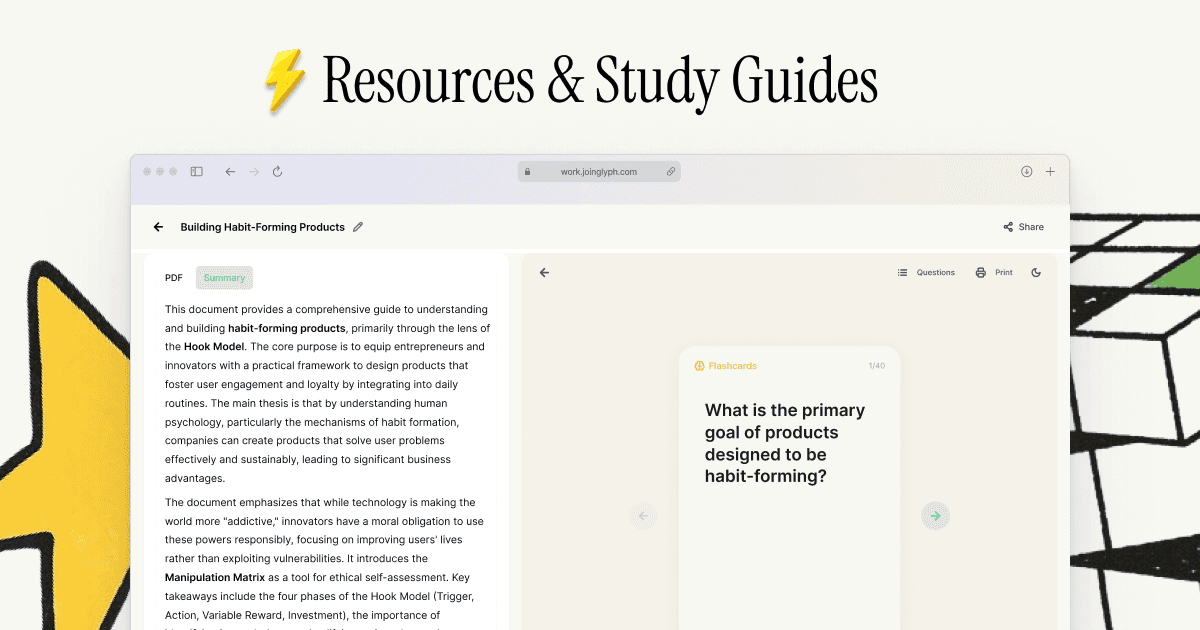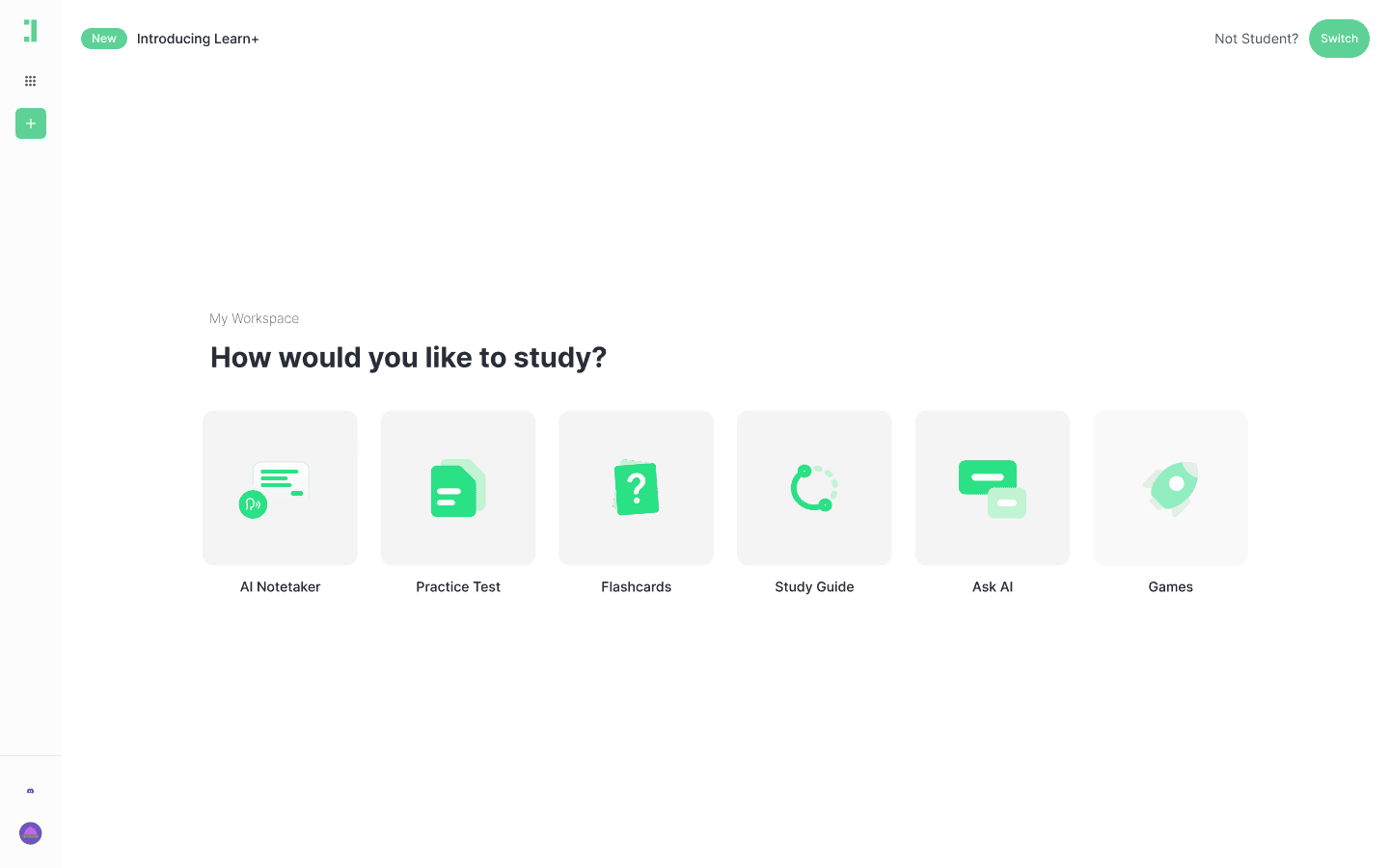
The Fastest Way to Convert Your PDF to Comparison Table
Learn how to instantly turn any PDF study material or document into a structured comparison table using Duetoday AI to save hours of manual work.
PDF to Comparison Table
Converting a complex PDF to comparison table format is one of the most effective ways to synthesize information for exams or professional reviews. Instead of scrolling through dozens of pages, a comparison table allows you to see the relationships between different concepts, products, or theories at a single glance.
Duetoday makes this process effortless by analyzing your documents and extracting key variables into a structured layout. Whether you are comparing psychological theories, business models, or biological processes, our AI-driven platform ensures you spend less time formatting and more time learning.
TL;DR:
Upload any PDF and let the AI extract contrasting data points automatically.
Features a step-by-step workflow to organize variables into a clear table.
Download or export your results to stay organized during your study sessions.
How to do PDF to Comparison Table in Duetoday (step-by-step)
Create your account: Log into Duetoday and head to your dashboard to start a new project.
Upload your PDF: Drag and drop the file you want to analyze. Our system supports everything from textbooks to whitepapers.
Set the Focus: Use the AI chat to specify that you want to create a PDF to comparison table specifically from the uploaded content.
Select Key Categories: Define the 'Columns' you want to compare. For example, if you are studying proteins, you might set columns for 'Function', 'Structure', and 'Location'.
Rename Headings: Customize the table headers to match your specific terminology or syllabus requirements.
Split Chapters: If your PDF is long, use the chapter split feature to generate comparison tables for specific sections rather than the whole book.
Choose Question Style: If you want the table to act as a study guide, toggle the 'Challenge Mode' to hide specific cells for active recall.
Refine the Extract: Tell the AI to 'include more detail on row X' or 'simplify the language in column Y' to get the perfect balance.
Review the Data: Check the generated table side-by-side with your PDF to ensure every nuance was captured correctly.
Add Custom Rows: If the AI missed a specific detail you find important, manually add a row to the table within the editor.
Format for Export: Choose your preferred layout—standard grid or concise bulleted comparison.
Save and Sync: Save the table to your library so you can access it on any device before your big deadline.
Upload Your PDF Here
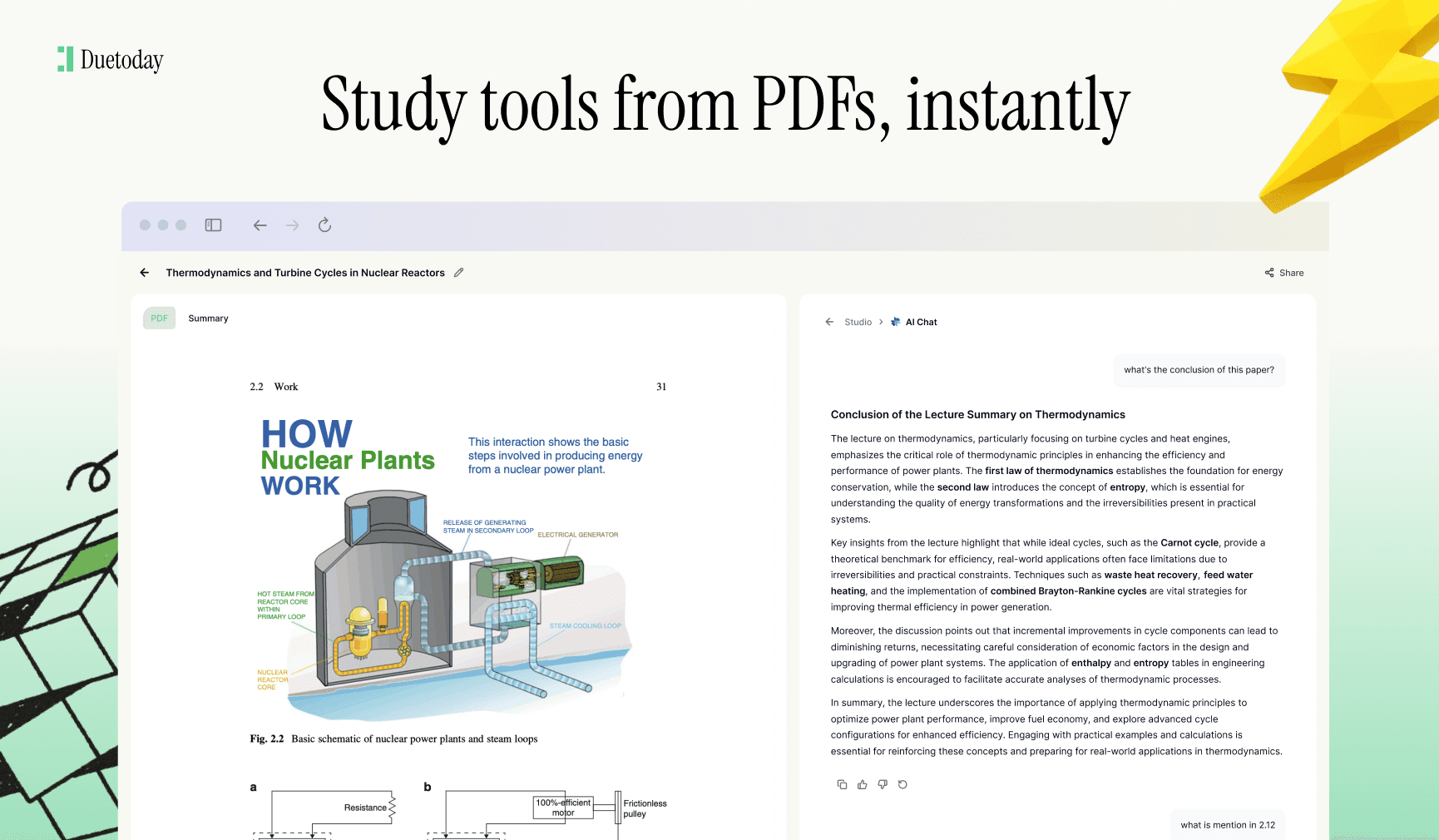
What you can generate from your PDF
Beyond the primary table, Duetoday uses the data from your document to create a full suite of study materials:
Flashcards: Transform table rows into definitions and cloze-style cards.
Quiz: Generate multiple-choice questions based on the differences highlighted in your table.
AI Tutor: Ask specific questions about the table to clarify why two items are different.
Mini example: Enzyme Comparison
Input: A 3-page PDF chapter discussing the differences between Amylase, Lipase, and Protease in human digestion.
Output (Comparison Table):
Amylase: Breaks down starches; produced in salivary glands/pancreas; works in mouth/small intestine.
Lipase: Breaks down fats; produced in pancreas; works in small intestine.
Protease: Breaks down proteins; produced in stomach/pancreas; works in stomach/small intestine.
Optimal pH: Amylase (7.0), Lipase (8.0), Protease (2.0 in stomach).
End Products: Sugars, Fatty Acids, Amino Acids.
Tips to get higher-quality results
Upload Clean Copies: Ensure the PDF doesn't have overlapping text or heavy watermarks that might confuse the extraction engine.
Define Your Variables: If you want a PDF to comparison table for specific metrics (like cost, date, or feature), tell the AI those metrics upfront.
Remove Junk Pages: Delete the cover page, table of contents, and references before uploading to keep the AI focused on the core data.
Use Section Selection: Highlight the specific paragraphs you want to compare to avoid pulling in irrelevant background information.
Troubleshooting
Scanned PDF not reading → Re-upload a version with higher resolution or use a PDF optimizer to clear up the text.
Too much information → Use the 'Summarize' command first, then ask for a comparison table from the summary.
Missing Columns → Explicitly list the columns you want in the AI chat (e.g., Add a column for 'Pros and Cons').
Formatting is messy → Try reducing the number of items you are comparing at once; split a 10-item table into two 5-item tables.
Ready to stop wasting hours on manual formatting? Use Duetoday to turn your next PDF to comparison table in seconds and master your material faster than ever. Try Duetoday for free today!

Duetoday is an AI-powered learning OS that turns your study materials into personalised, bite-sized study guides, cheat sheets, and active learning flows.